# Introduction

What is C6

C6 is a complete 3D printing platform from [Fabheads](https://www.fabheads.in). It is an innovative platform with &#x20;

* Browser based user interface for 3D prints' slicing operation and project management
* Cloud based server and&#x20;
* Cloud based C6 slicing engine.

![India's first Slicing Platform](https://2725271476-files.gitbook.io/~/files/v0/b/gitbook-x-prod.appspot.com/o/spaces%2F2Q7lAVMQdQQOQTm1U60O%2Fuploads%2FVkb2r2dAYh3TXPsgATki%2Fc6-logo-1280x640-shadow.png?alt=media\&token=cfdb0141-a374-477f-bcfd-36bf4ba8edd1)

{% hint style="info" %}
**Why the name C6?**

Fabheads takes proud in the innovative [**Carbon Fiber 3D printers**](https://thefabmachines.com/f3series/) we have designed and developed in-house. C6 started as a co-product of these Carbon fiber 3D printers, and hence named C6 after the element symbol and atomic no. of Carbon.
{% endhint %}

C6 has all the basic slicing features like

* Various infills - Honeycomb, rectilinear, grid, Aligned Rectilinear and concentric
* Control on print parameters like layer height, extrusion width, print speed and a lot more
* Print supports and helper features like brim, skirt etc.
* Print using [dual nozzle setup](/workflows/dual-nozzle-printing)&#x20;
* Variable infill density, support density etc. Choose bottom and top layer counts, solid layers, slow layers etc.
* Printer management, print settings presets
* Lot more settings ... details in [Print Settings](/modules/print-settings)

Along with standard slicer features, there are many features C6 stands out in

* C6 supports thermoplastic and [Continuous fiber prints](/workflows/fiber-printing) slicing
* It is the first fully integrated slicing platform in India, and one of its kind globally as well
* C6 is not designed as a one-time slicer. It is built to manage 3D printing jobs. You can [save your files](/modules/file-handling), GCode for future perusal, or even [edit the saved jobs](/workflows/edit-an-existing-job) with different settings
* The save functionality in C6 enables it to be used as a [design iteration](/workflows/edit-an-existing-job) platform as well
* C6 has in-built [user management](/authentication) i.e. you can login in your account from anywhere and access your print jobs. The web-based architecture allows easy access from any modern system without downloading any package
* C6 has in-built [project management](/projects-and-jobs/projects) i.e. You can create new projects and new jobs inside them. This helps categorize your 3D print work nicely, without having to save numerous 3D part and GCode files in your system
* C6 allows you to perform in-platform [quality assurance](/quality) tasks - Mark non-conformances, add images of quality issues, mark a part approved or failed. These quality assurance steps make sure your printed parts follow your organization's quality protocols.
* C6 gives user full freedom to save or avoid saving the [files on cloud](/modules/file-handling/files-in-cloud). Saved files allow user to access the files later in future, and make changes to them
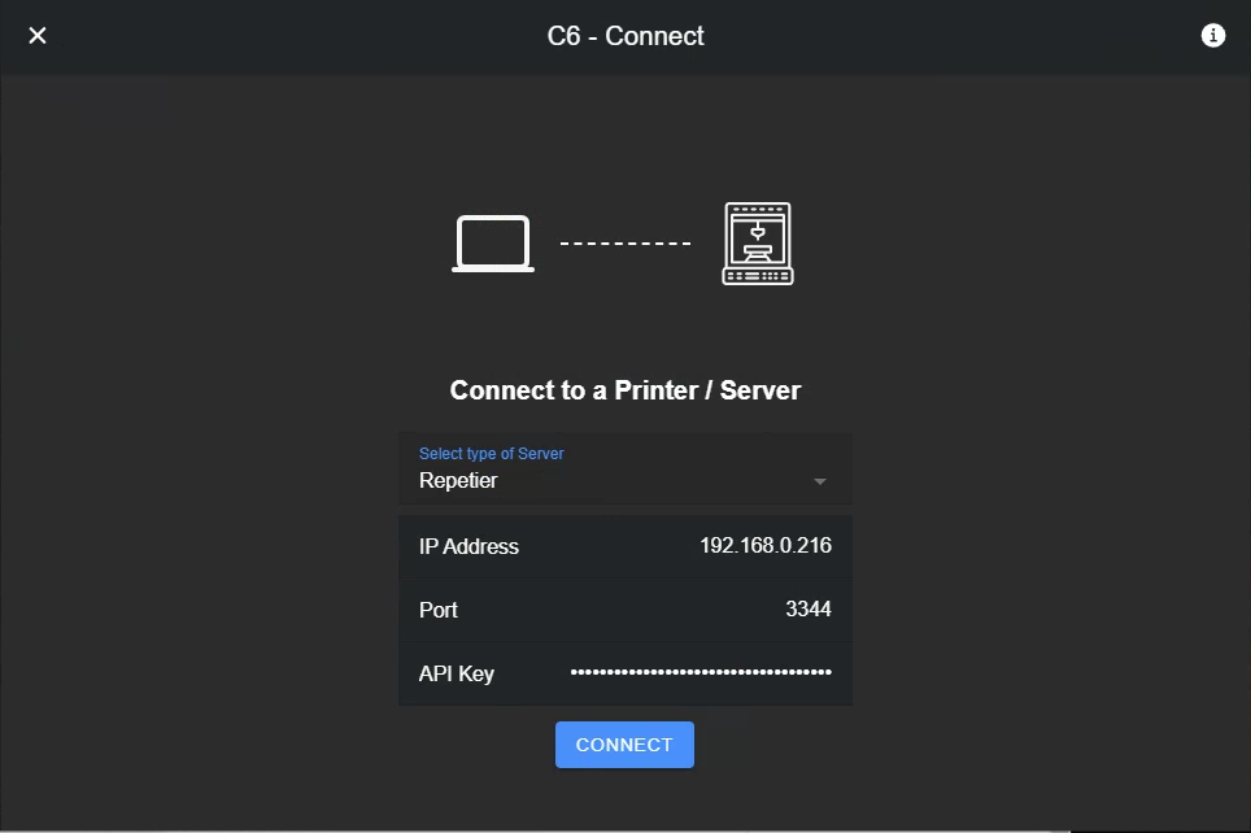
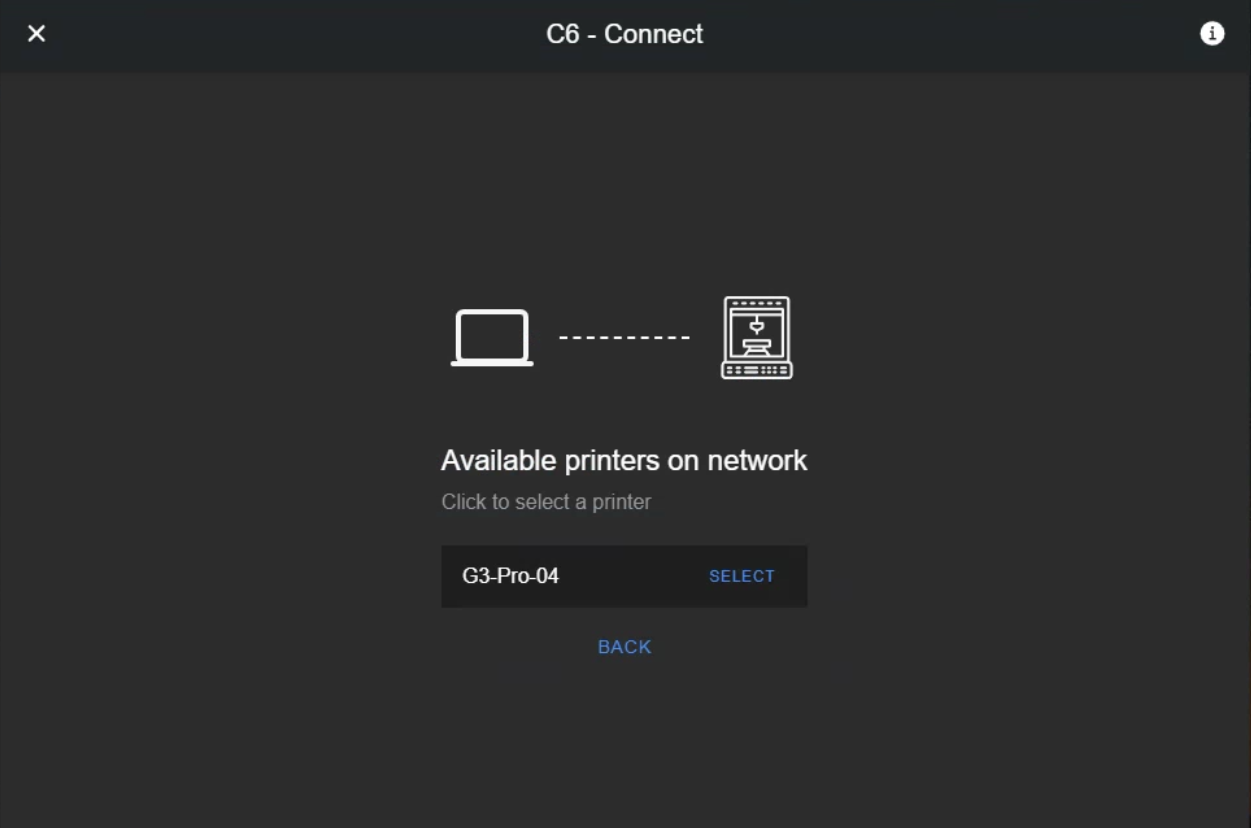
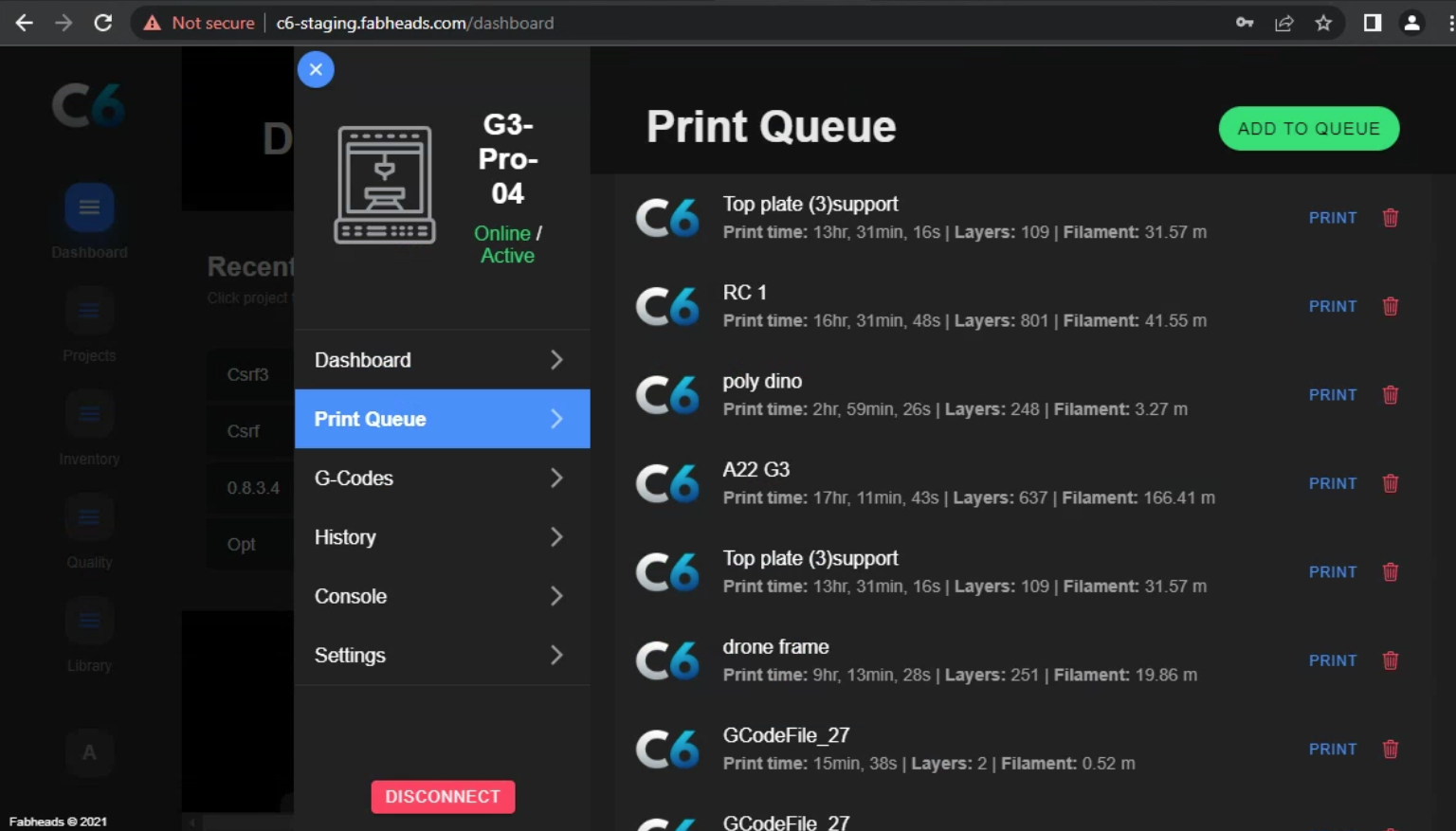
* Remote printing using [Repetier server](/workflows/connect-to-local-printers/repetier-server) and live print monitoring !
* C6 file system is [encrypted](/encryption). The files uploaded by user will be stored safely in a cloud storage. The communication between the web-app and server is also encrypted
* We appreciate and expect [feedback](/modules/feedback) from our users. C6 has a special in-built feedback system which allows users to report bugs, and well as suggest new features and enhancements
* C6 [auto-updates](/requirements#updates)! Yes, you don't need to downloads regular updates, or risk auto updates of a software which can break your system. With each update, you can be sure that C6 will work the same, and your data remains intact

C6 is already feature heavy compared to other slicers, but we aim to include a lot more user friendly features like

* Custom fiber placement capability
* In-line GCode editor
* Mobile-based slicing and printer operations

... and much more.&#x20;


# C6 Unique Features

How it compares with existing softwares

Unlike other slicing softwares, C6 is a combination of slicing engine + 3D print platform. The aim for C6 is to provide a holistic framework for 3D printing workplaces. This note gives a quick idea about the USPs of C6, and a quick comparison with other existing slicing softwares.&#x20;

## C6 unique features

* **Complete Framework -** C6 is the first fully integrated slicing platform - Slicer engine + User, quality and project management + Cloud storage - in India, and one of its kind globally as well
* **Fiber Printing** - C6 supports [Continuous fiber prints](/workflows/fiber-printing) slicing along with thermoplastic
* **Save slicing data -** C6 is not designed as a one-time slicer. It is built to manage 3D printing jobs. You can [save your files](/modules/file-handling), G-code for future perusal, or even [edit the saved jobs](/workflows/edit-an-existing-job) with different settings.&#x20;
* **Design iterations** - C6 enables users to perform [design iterations](/workflows/edit-an-existing-job) by saving multiple versions of a sliced part with different settings. This is useful in rapid prototyping and coming up with the best print settings for a part
* **User Management** - C6 has in-built [user management](/authentication) i.e. you can login in your account from anywhere and access your print jobs. The web-based architecture allows easy access from any modern system without downloading any package
* **Project Management** - C6 has in-built [project management](/projects-and-jobs/projects) i.e. You can create new projects and new jobs inside them. This helps categorize your 3D print work nicely, without having to save numerous 3D part and G-code files in your system
* **Quality Management** - C6 allows you to perform in-platform [quality assurance](/quality) tasks - Mark non-conformances, add images of quality issues, mark a part approved or failed. These quality assurance steps make sure your printed parts follow your organization's quality protocols.
* **User chosen privacy** - C6 gives user full freedom to save or avoid saving the [files on cloud](/modules/file-handling/files-in-cloud). Saved files allow user to access the files later in future, and make changes to them
* **Remote printing and monitoring** - Remote printing using [Repetier server](/workflows/connect-to-local-printers/repetier-server) and live print monitoring ! (Feature under testing)
* **Encryption** - C6 file system is [encrypted](/encryption). The files uploaded by user will be stored safely in a cloud storage. The communication between the web-app and server is also encrypted
* **Feedback System** - We appreciate and expect [feedback](/modules/feedback) from our users. C6 has a special in-built feedback system which allows users to report bugs, and well as suggest new features and enhancements
* **Auto-update** - C6 [auto-updates](/requirements#updates)! Yes, you don't need to downloads regular updates, or risk auto updates of a software which can break your system. With each update, you can be sure that C6 will work the same, and your data remains intact
* **Preset Management** - With C6, you can create and save endless number of print presets i.e. combination of settings. E.g. A set of settings to print ABS for a fine finish, another set of settings for quickest print time, another set for PLA, another for PEEK etc.&#x20;
* **Printer Management** - You can add any number of printers to the interface, and define the print presets based on that. C6 remembers the settings associated with each printer, so when you select the printer, the associated presets will show up
* **Print history and statistics** - Using the project and job management modules, C6 is able to show print history and related statistics on user Dashboard. This includes
  * Latest projects
  * Latest print jobs
  * Material inventory
  * Latest quality checks
  * Print statistics (by day, week, month)

## Upcoming Features

C6 is already feature-heavy compared to other slicers, but we are currently working on a lot more user-friendly features like

* Custom fiber placement capability (Manual)
* Predictive fiber placement (Automatic)
* In-line G-code editor
* Native CAD File Imports - STEP, DAE, IGES.
* Zillar - Technique to Increase Part strength along Z axis.&#x20;
* Fully Smartphone based slicing and printer operations
* Two Factor Authentication
* **Organization management** - Assign roles to users in your organization e.g. designer, quality management, manager, etc.

## Comparison

<table><thead><tr><th width="226">Features</th><th width="62">C6</th><th width="80" align="center">Cura</th><th width="80" align="center">Prusa Slicer</th><th width="80" align="center">Slic3r</th><th width="116" align="center">Simplify3d</th><th width="122" align="center">Eiger</th><th width="74">Aura</th></tr></thead><tbody><tr><td>Reinforced CCF Infill </td><td>✅</td><td align="center">❌</td><td align="center">❌</td><td align="center">❌</td><td align="center">❌</td><td align="center">✅</td><td></td></tr><tr><td>Reinforced CCF Walls</td><td>✅</td><td align="center">❌</td><td align="center">❌</td><td align="center">❌</td><td align="center">❌</td><td align="center">✅</td><td></td></tr><tr><td>Complete framework </td><td>✅</td><td align="center">❌</td><td align="center">❌</td><td align="center">❌</td><td align="center">❌</td><td align="center">❌</td><td></td></tr><tr><td>User management</td><td>✅</td><td align="center">❌</td><td align="center">❌</td><td align="center">❌</td><td align="center">❌</td><td align="center">✅</td><td></td></tr><tr><td>Project management</td><td>✅</td><td align="center">❌</td><td align="center">❌</td><td align="center">❌</td><td align="center">❌</td><td align="center">✅</td><td></td></tr><tr><td>Quality management</td><td>✅</td><td align="center">❌</td><td align="center">❌</td><td align="center">❌</td><td align="center">❌</td><td align="center">❌</td><td></td></tr><tr><td>Print Versioning </td><td>✅</td><td align="center">❌</td><td align="center">❌</td><td align="center">❌</td><td align="center">❌</td><td align="center">❌</td><td></td></tr><tr><td>Remote Printing and Monitoring</td><td>✅</td><td align="center">❌</td><td align="center">❌</td><td align="center">❌</td><td align="center">❌</td><td align="center">✅</td><td></td></tr><tr><td>Server-Side Computation</td><td>✅</td><td align="center">❌</td><td align="center">❌</td><td align="center">❌</td><td align="center">❌</td><td align="center">✅</td><td></td></tr><tr><td>Encryption</td><td>✅</td><td align="center">❌</td><td align="center">❌</td><td align="center">❌</td><td align="center">❌</td><td align="center">✅</td><td></td></tr><tr><td>Feedback system</td><td>✅</td><td align="center">❌</td><td align="center">❌</td><td align="center">❌</td><td align="center">❌</td><td align="center">❌</td><td></td></tr><tr><td>Auto-update</td><td>✅</td><td align="center">❌</td><td align="center">❌</td><td align="center">❌</td><td align="center">❌</td><td align="center">✅</td><td></td></tr><tr><td>Organisation management</td><td>🛠</td><td align="center">❌</td><td align="center">❌</td><td align="center">❌</td><td align="center">❌</td><td align="center">✅</td><td></td></tr><tr><td>In-line g-code viewer</td><td>🛠</td><td align="center">❌</td><td align="center">✅</td><td align="center">❌</td><td align="center">❌</td><td align="center">❌</td><td></td></tr><tr><td>In-line g-code editor</td><td>🛠</td><td align="center">❌</td><td align="center">❌</td><td align="center">❌</td><td align="center">❌</td><td align="center">❌</td><td></td></tr><tr><td>Smart-phone based interface</td><td>🛠</td><td align="center">❌</td><td align="center">❌</td><td align="center">❌</td><td align="center">❌</td><td align="center">❌</td><td></td></tr><tr><td>Printer management</td><td>✅</td><td align="center">✅</td><td align="center">✅</td><td align="center">❌</td><td align="center">✅</td><td align="center">✅</td><td></td></tr><tr><td>Preset management</td><td>✅</td><td align="center">✅</td><td align="center">✅</td><td align="center"></td><td align="center">✅</td><td align="center">❌</td><td></td></tr><tr><td>Print history and statistics</td><td>✅</td><td align="center">❌</td><td align="center">❌</td><td align="center">❌</td><td align="center">❌</td><td align="center">✅</td><td></td></tr><tr><td>Smart manipulation</td><td>🛠</td><td align="center">❌</td><td align="center">❌</td><td align="center">❌</td><td align="center">❌</td><td align="center">❌</td><td></td></tr><tr><td>Themes</td><td>✅</td><td align="center">✅</td><td align="center">❌</td><td align="center">❌</td><td align="center">❌</td><td align="center">❌</td><td></td></tr><tr><td>Two Factor Authentication</td><td>🛠</td><td align="center">❌</td><td align="center">❌</td><td align="center">❌</td><td align="center">❌</td><td align="center">❌</td><td></td></tr><tr><td>Social Login - Google</td><td>✅</td><td align="center">❌</td><td align="center">❌</td><td align="center">❌</td><td align="center">❌</td><td align="center">✅</td><td></td></tr><tr><td>Smart Seams</td><td>✅</td><td align="center">❌</td><td align="center">✅</td><td align="center">❌</td><td align="center">❌</td><td align="center">❌</td><td></td></tr><tr><td>Conditional G-Code/PostProcessing</td><td>❌</td><td align="center">✅</td><td align="center">✅</td><td align="center">✅</td><td align="center">✅</td><td align="center">❌</td><td></td></tr><tr><td>Modifier Meshes</td><td>❌</td><td align="center">✅</td><td align="center">✅</td><td align="center">✅</td><td align="center">❌</td><td align="center">❌</td><td></td></tr><tr><td>Customization of Settings</td><td>✅</td><td align="center">✅</td><td align="center">✅</td><td align="center">✅</td><td align="center">✅</td><td align="center">❌</td><td></td></tr><tr><td>Native CAD file Import<em>(STEP,IGES...)</em></td><td>🛠</td><td align="center">❌</td><td align="center">❌</td><td align="center">❌</td><td align="center">❌</td><td align="center">❌</td><td></td></tr><tr><td>Auto Orientation for printablilty.</td><td>🛠</td><td align="center">❌</td><td align="center">❌</td><td align="center">❌</td><td align="center">❌</td><td align="center">❌</td><td></td></tr><tr><td>Print Non Manifold Meshes</td><td>🛠</td><td align="center">✅</td><td align="center">✅</td><td align="center">✅</td><td align="center">✅</td><td align="center">❌</td><td></td></tr><tr><td>3D Model Marketplace</td><td>🛠</td><td align="center">❌</td><td align="center">❌</td><td align="center">❌</td><td align="center">❌</td><td align="center">❌</td><td></td></tr></tbody></table>


# Requirements

If you can run Facebook, you can use C6

![Yes, he said that ! ](https://2725271476-files.gitbook.io/~/files/v0/b/gitbook-x-prod.appspot.com/o/spaces%2F2Q7lAVMQdQQOQTm1U60O%2Fuploads%2FUegu58kYENKIxVSTlmuC%2Fimage.png?alt=media\&token=29e39306-f36a-4c60-ae9d-738739af76b8)

And no, we don't have any connections with Facebook. That's just a comparison for how low resource capital C6 needs to run on your system.

C6 is designed keeping cross-platform compatibility in mind. In other words, users can just use any system that supports a modern browser (Chrome, Firefox, Safari) and they can use all features of C6.

### Ideal System Specs

Since a slicing platform handles 3D part files and g-code visualizations, the memory and CPU requirements decide the performance of the app. C6 runs flawlessly on most modern laptop and desktop systems. If you have to decide on a system, you can choose one with

* At least 4GB RAM
* At least i3 processor
* At least Chrome 96

(although C6 will run on a system with lesser specs as well)&#x20;

### Updates

Being a web+cloud platform, C6 will always auto-update without any involvement from user - no new downloads, no setup, no breaking changes.

If an update requires a particular browser version to run properly, users will be informed about it when they login to C6.&#x20;


# Mobile Access

Compatible, but not yet

C6 being a web-app is fully compatible with smartphones, but ! ...

.. because the computation and memory requirement of a slicing platform is higher than normal smartphone browsers can support, for the time being, we block mobile access to the C6 app.

![](https://2725271476-files.gitbook.io/~/files/v0/b/gitbook-x-prod.appspot.com/o/spaces%2F2Q7lAVMQdQQOQTm1U60O%2Fuploads%2F6MILK8JuIgsoHCDVkse4%2Fimage.png?alt=media\&token=d690381d-eefa-43c1-a815-d840ec36e40c)

we can support slicing if your mobile browser supports desktop version, here is sneak peak...

![C6 - Mobile Slicing. ](https://2725271476-files.gitbook.io/~/files/v0/b/gitbook-x-prod.appspot.com/o/spaces%2F2Q7lAVMQdQQOQTm1U60O%2Fuploads%2FXEYqjiy02zrjLiCU7xtN%2Fimage.png?alt=media\&token=5c554d95-0706-4374-a74b-ebf4b66d89a3)


# Fiber 3D Printing

Why and how is it different from normal 3D printing

Fiber 3D printing is very similar to FDM, or a normal thermoplastic (like PLA) printing. In both case, the material filament passes through the hot extruder, melts the thermoplastic/bonding material in the filament, and then deposits the material as per the g-code.&#x20;

But fiber 3D printing differs from plastic 3D printing in few things

* **Fiber has a fixed width** - While plastic can melt and take available space, fiber has a pre-defined width. For [FabMachines F3 Fiber](https://thefabmachines.com/f3series/) 3D printers, it is 2mm. The width of fiber cannot reduce if space is not available
* **Fiber cannot take sharp turns** - Since fiber has a finite width, and is continuous, it cannot take sharp turns. Instead, it has a minimum turning radius which needs to be taken into account when printing walls and infill with Fiber.\
  As a result, it is difficult to have 100% infill density with Fiber alone. The remaining area can either be filled with plastic, or left vacant depending on the design.&#x20;
* **Fiber cannot overlap** - Ideally the fibers should not overlap. An overlap will lead to definite material build-up, unlike plastic printing, where slight overlap just results in additional packing of material in the current layer
* **Fiber needs to cut** - The biggest difference from plastic printing is that fiber needs to cut after each segment, before moving to next segment. This is because fiber is a continuous entity, and each travel move will require a cut in the fiber.&#x20;
* **Fiber should have continuous walls** - In the simplest example, say you are printing only 3 outer walls with fiber. In plastic printing, one can

```
> Print Wall#1
> Retract and/or travel
> Print Wall#2
> Retract and/or travel
> Print Wall#3
```

But for fiber, retraction or travel won't cut the fiber, and hence, ideally, all 3 walls need to be printing in a continuous curve (think of a wall curve spiraling in). \
\
If you want to print all 3 walls separately, that's also possible, but that will introduce 3 cuts in your fiber wall. A cut in fiber inherently leads to less strength. Hence a continuous wall is recommended&#x20;

* **Fiber cut is hardware dependent** - While most of the print params in plastic printing are hardware independent, `FIBER_CUT_DISTANCE` is an important factor in fiber printing.\
  \
  `FIBER CUT DISTANCE` *is the distance of the cutting point from the nozzle exit point, and it equals the distance which the fiber printing nozzle will travel after cutting the fiber.* \
  \
  This happens because the fiber cannot be cut exactly at the point of nozzle exit. Once you cut the fiber, the cut part (attached to the already printing fiber) will continue to print till the end of segment. The next segment of fiber (behind the cut part) will stay behind the cutting point. When the next fiber print segment starts, this new fiber portion will be extruded equal to `FIBER_CUT_DISTANCE` before the printing nozzle starts moving.&#x20;
* **Fiber print requires minimum length** - Since the `FIBER_CUT_DISTANCE` is a fixed value for a hardware, any curve with length less than this value cannot be printed with fiber. In other words, your fiber-print segment start point and end point should be at least as far as `FIBER CUT DISTANCE`, otherwise there will be leftover fiber after the segment is printed. This leftover can cause overlaps and other issues.\
  \
  This can also lead to certain perimeters having fibers, while others don't (because of perimeter length being less than `FIBER_CUT_DISTANCE`


# Alpha / Beta Users

{% hint style="success" %}
C6 is now available to all users. Alpha / Beta testing of C6 is complete.
{% endhint %}

Initial version of C6 are / will be launched as Alpha and Beta versions. Limited users will have access to these versions.

You can follow the registration process as mentioned in [Authentication](/authentication) page. If you have registered for alpha/beta access and still not able to access, reach out to us on <info@fabheads.in>&#x20;

![](https://2725271476-files.gitbook.io/~/files/v0/b/gitbook-x-prod.appspot.com/o/spaces%2F2Q7lAVMQdQQOQTm1U60O%2Fuploads%2FmNUzkDXyn1D6nSZ6X22E%2Fimage.png?alt=media\&token=bb7988c5-6fe5-4728-8c95-564cdd4bd678)


# Authentication

Register, Login and Password Reset

C6 is designed with cross-platform ability. You can use C6 like any other web-app (facebook, gmail ? ) by just logging into your account, and safely access your files. Once done, you can just logout and rest assured that all your files are safe on cloud. Nothing is saved on the local browser.&#x20;

<figure><img src="https://2725271476-files.gitbook.io/~/files/v0/b/gitbook-x-prod.appspot.com/o/spaces%2F2Q7lAVMQdQQOQTm1U60O%2Fuploads%2FgbEFYZz5qUMz4hhZy9Up%2Fimage.png?alt=media&amp;token=8e7d5de9-46ab-4165-9e30-69d055deb75d" alt=""><figcaption></figcaption></figure>

### Registration

As with any other web app, you can [register](https://c6.fabheads.com/register) for C6 using just your email. You will receive a verification email post-registration. You can verify by clicking on the verification link from the email. Pretty standard right !  Make sure you are verified using the registration email.

<figure><img src="https://2725271476-files.gitbook.io/~/files/v0/b/gitbook-x-prod.appspot.com/o/spaces%2F2Q7lAVMQdQQOQTm1U60O%2Fuploads%2Fj0hfMtcoX11CeqM4ebkX%2Fimage.png?alt=media&amp;token=b595e591-e366-4baf-8b1e-147a9ab4299e" alt=""><figcaption><p>Registration for New User</p></figcaption></figure>

### Login

Again, login is a standard web-app login.&#x20;

<figure><img src="https://2725271476-files.gitbook.io/~/files/v0/b/gitbook-x-prod.appspot.com/o/spaces%2F2Q7lAVMQdQQOQTm1U60O%2Fuploads%2FlaGpS8VvWEkT6XZR6EKC%2Fimage.png?alt=media&amp;token=5d46a335-1998-4559-a656-18304f1d3d66" alt=""><figcaption><p>Login page</p></figcaption></figure>

### Forgot Password

If anytime you forget your password, you can recover it from the [Forgot Password](https://c6.fabheads.com/forgot) page. Once you enter your email and submit, you'll receive the recovery email with a reset password link. Click on the link and set your password. Again, standard stuff.&#x20;

![Recover Password ](https://2725271476-files.gitbook.io/~/files/v0/b/gitbook-x-prod.appspot.com/o/spaces%2F2Q7lAVMQdQQOQTm1U60O%2Fuploads%2FHdRPmkuzhQAafdK6xWrb%2Fimage.png?alt=media\&token=1a205fc9-9cb9-4e59-8e3d-11068b696684)

### Social Login

C6 now has the ability to use single sign-on for end users. C6 offers Google Social Networking for signing in instead of creating a new account specifically. This simplifies registrations and logins for end users. Other Social Logins are coming up soon.

<figure><img src="https://2725271476-files.gitbook.io/~/files/v0/b/gitbook-x-prod.appspot.com/o/spaces%2F2Q7lAVMQdQQOQTm1U60O%2Fuploads%2F43kLlHsGsUVrNhphCX5x%2Fimage.png?alt=media&amp;token=144abd91-3683-453e-a7a3-e3d0b26f1c91" alt=""><figcaption></figcaption></figure>


# Dashboard

Quick information on your projects, print jobs, material and a lot more

C6 comes with a user Dashboard unique to each user profile, along with general useful sections for all users. The dashboard gives a quick look on your activity and a shortcut to your latest work.

The dashboard is divided into total 8 pieces

1. [Quick Slice Button](#quick-slice)
2. [Recent Projects](#recent-projects)
3. [Recent Quality Checks](#recent-quality-checks)
4. [Materials](#materials)
5. [Recent Print Jobs](#recent-print-jobs)
6. [Recent Activity](#recent-activity)
7. [Latest in Library](#latest-in-library-and), and
8. [New in Knowledge-base](#new-in-knowledge-base)

<figure><img src="https://2725271476-files.gitbook.io/~/files/v0/b/gitbook-x-prod.appspot.com/o/spaces%2F2Q7lAVMQdQQOQTm1U60O%2Fuploads%2FeHYvIOOYfNcUnaNGyNgN%2Fscreencapture-c6-staging-fabheads-dashboard-2022-11-14-18_10_55.png?alt=media&amp;token=6db1da36-cea0-451c-96ce-595eda1c6ab6" alt=""><figcaption><p>Dashboard Page</p></figcaption></figure>

## Quick Slice

Quick Slice is a feature that allows users to slice without creating any project. Can be used for quick slicing or viewing of Gcodes.&#x20;

<figure><img src="https://2725271476-files.gitbook.io/~/files/v0/b/gitbook-x-prod.appspot.com/o/spaces%2F2Q7lAVMQdQQOQTm1U60O%2Fuploads%2FlICOfwdtHBZzlOjD3yRT%2Fchrome-capture-2022-10-14%20(1).gif?alt=media&amp;token=ea4b205a-421f-474a-bf23-b8436c1a123e" alt=""><figcaption><p>Quick Slice from Dashboard</p></figcaption></figure>

{% hint style="info" %}
You can even save the print job if required by selecting save job icon. You can create a new project page or save it to an existing project page. &#x20;
{% endhint %}

<figure><img src="https://2725271476-files.gitbook.io/~/files/v0/b/gitbook-x-prod.appspot.com/o/spaces%2F2Q7lAVMQdQQOQTm1U60O%2Fuploads%2F2rkWvilGpzRc8M1o8uWg%2Fchrome-capture-2022-10-14%20(2).gif?alt=media&amp;token=ce6d66bd-91db-45a0-912c-0ef7b2eb65fb" alt=""><figcaption><p>Save Job from Quick Slice. </p></figcaption></figure>

&#x20;

## Recent Projects

Right after logging in to C6, you land on the [Dashboard Page](/dashboard). If you have any saved projects in your account, those will show up **Recent Projects**

## Recent Quality Checks

## Materials

## Recent Print Jobs

## Recent Activity

## Latest in Library

## New in Knowledge-base


# Projects & Jobs

C6 file management is divided into [Projects](/projects-and-jobs/projects) and [Jobs](/projects-and-jobs/jobs).&#x20;

* Project is a collection of Jobs
* Job is one individual 3D print section where the 3D part file (STL, OBJ etc.), g-code, printer, part location and other print settings are saved

![C6 - Project page](https://2725271476-files.gitbook.io/~/files/v0/b/gitbook-x-prod.appspot.com/o/spaces%2F2Q7lAVMQdQQOQTm1U60O%2Fuploads%2F7F4twk6jtiYs3dAB9Yuy%2Fimage.png?alt=media\&token=f445f30b-8d88-4b67-aaee-267829cf67c4)

![Jobs - Glance on saved Print jobs with size, Print Time, & Print Settings.  ](https://2725271476-files.gitbook.io/~/files/v0/b/gitbook-x-prod.appspot.com/o/spaces%2F2Q7lAVMQdQQOQTm1U60O%2Fuploads%2FotsXuUjDAS6nflNqW5FS%2Fimage.png?alt=media\&token=335e4208-e0a7-4024-81b3-7183022b50ae)


# Projects

Collection of print jobs

## List Projects

![List projects in C6](https://2725271476-files.gitbook.io/~/files/v0/b/gitbook-x-prod.appspot.com/o/spaces%2F2Q7lAVMQdQQOQTm1U60O%2Fuploads%2FM570bKXehuPD1DXHnWAH%2Flist%20projects.png?alt=media\&token=fc28a04f-1b08-4945-af81-0f701d28ac6d)

You'll see a pagination button on the bottom if you have more than 10 projects. You can move between the list pages using the arrows or by clicking on the page number.

## Open Project

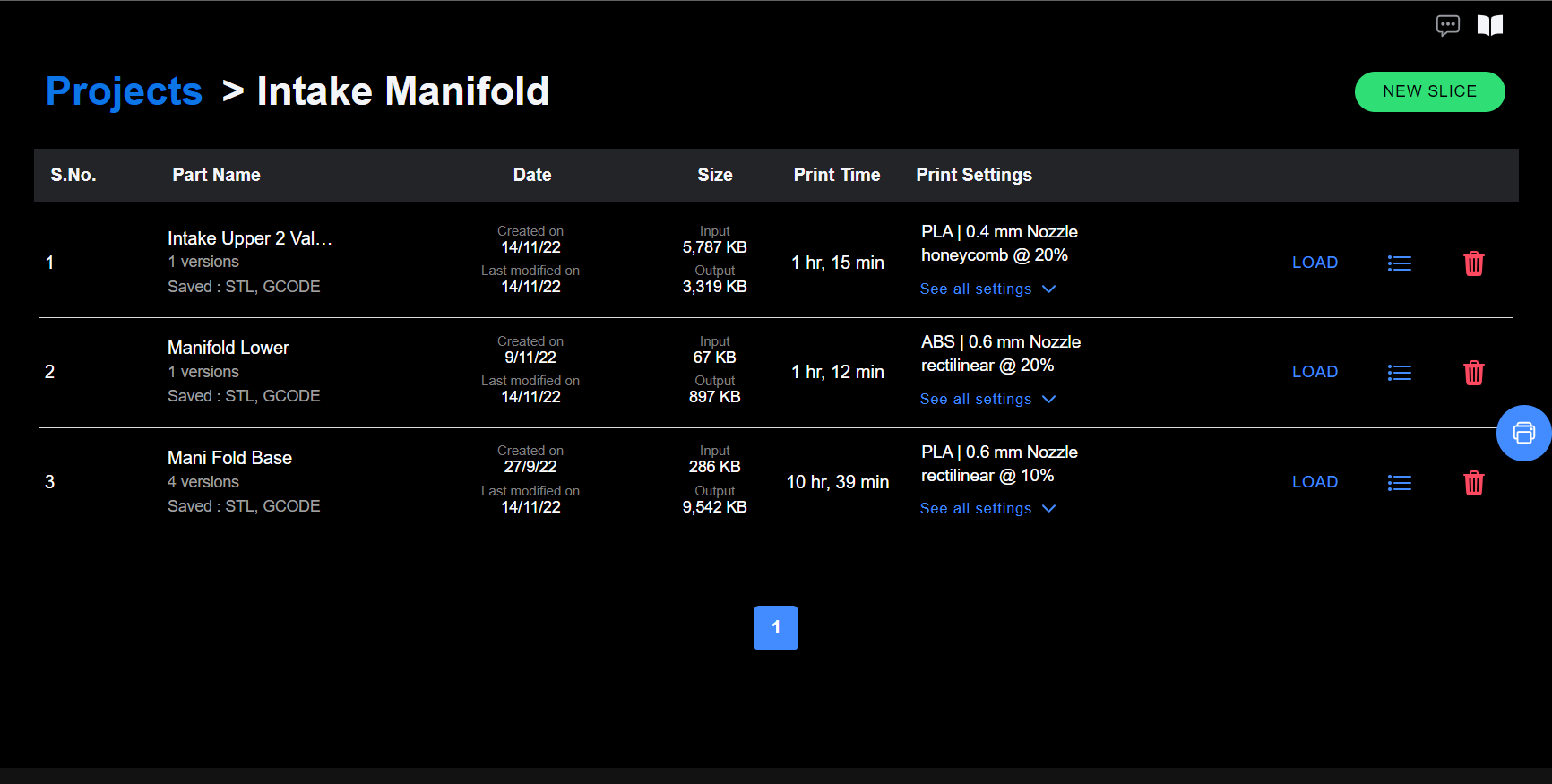
Clicking **`Open`** in front of a project will open the project, and show a [list of jobs](/projects-and-jobs/jobs#list-jobs) in that project.&#x20;

In the Job list page, you can always click the project name on the top left to get back to the project list.

![Open a project to view list of saved jobs](https://2725271476-files.gitbook.io/~/files/v0/b/gitbook-x-prod.appspot.com/o/spaces%2F2Q7lAVMQdQQOQTm1U60O%2Fuploads%2FoArOjz7eyRwZrTCxMbLE%2Flist%20projects.png?alt=media\&token=5d7c51f2-cb87-4343-a1de-d29f21d937a4)

## Create New Project

You can create a new project by clicking the **`New Project`** Button. The dialog box gives you option to enter a name and description of the project.

Make sure you give the project a unique name. A repeat name will not be allowed.

![Create new 3D printing project in C6](https://2725271476-files.gitbook.io/~/files/v0/b/gitbook-x-prod.appspot.com/o/spaces%2F2Q7lAVMQdQQOQTm1U60O%2Fuploads%2FD8q4QHsW6L4DFk2J1UQP%2Fimage.png?alt=media\&token=92ae22f9-52b0-49e6-a488-b3499cdfa566)

## Edit Project

An existing project can be edited by clicking the **Edit button** <img src="https://2725271476-files.gitbook.io/~/files/v0/b/gitbook-x-prod.appspot.com/o/spaces%2F2Q7lAVMQdQQOQTm1U60O%2Fuploads%2Fq4tdJMcHytFXxQUWJufz%2Fcreate.svg?alt=media&amp;token=5ca2d732-b553-41a4-b6e0-4e6556735b99" alt="" data-size="line"> in front of the project name, under **`Actions`** column.&#x20;

This will open up the same dialog box as **New Project,** and you can update the details and save again.

![Edit existing project in C6](https://2725271476-files.gitbook.io/~/files/v0/b/gitbook-x-prod.appspot.com/o/spaces%2F2Q7lAVMQdQQOQTm1U60O%2Fuploads%2FePvX4qgDIxhdsqHFfltF%2Fimage.png?alt=media\&token=8f33b898-5849-4eca-ac93-809337ec2a02)

## Remove Project

You can remove a project from your account by clicking **Delete Project** <img src="https://2725271476-files.gitbook.io/~/files/v0/b/gitbook-x-prod.appspot.com/o/spaces%2F2Q7lAVMQdQQOQTm1U60O%2Fuploads%2FEXETFlZ008tI7QBi48ZV%2Ftrash.svg?alt=media&amp;token=5ced051c-98b5-4ab8-bf9a-cc0e6c24c15b" alt="" data-size="line"> in front of the project name, under **`Actions`** column. On confirming, your project will be removed from the list and account.

{% hint style="warning" %}
Once deleted, a project cannot be retrieved. Hence, delete a project at your own discretion. Check [Retrieve Deleted Project](#retrieve-delete-project) below
{% endhint %}

## Retrieve Deleted Project

Once you delete a project, it is not possible to retrieve it from the user interface. If the project was deleted by mistake, our team can help you recover it. Please reach out to <info@fabheads.in> for the same.
{% hint style="warning" %}
Please note, our regular server cleanup removes all files related to deleted projects from the cloud permanently. The threshold for this deletion is 7 days after the project is deleted. If you request a recovery after that, any recovery might not be possible.
{% endhint %}


# Jobs

A sliced 3D file with g-code and print settings

A job in C6 is a collection of&#x20;

* The 3D part file(s)
* The sliced g-code file
* Settings - Printer, object(s) location and print settings

A Job is created only when a sliced part is [saved](/modules/gcode-preview/save-job) in the Slicing Interface.&#x20;

{% hint style="warning" %}
If you slice a part and do not save, it will not be available for future editing or in the list of jobs
{% endhint %}

## List Jobs

Clicking **`Open`** in a project row will [open the project](/projects-and-jobs/projects#open-project) and display all the saved jobs in a similar list layout.

<figure><img src="https://2725271476-files.gitbook.io/~/files/v0/b/gitbook-x-prod.appspot.com/o/spaces%2F2Q7lAVMQdQQOQTm1U60O%2Fuploads%2FTOpmwbqMnlfSILhhZoe3%2Fimage.png?alt=media&amp;token=71194d0e-e608-45d6-8bfd-c19d1829766b" alt=""><figcaption><p>Jobs Lists</p></figcaption></figure>

The columns of each job row are pretty self-explanatory

1. Part Name - This is generally the name of the STL file you uploaded during slicing. If there were more than one file sliced together, the name will reflect each of the files' name separated by an `_` E.g. Two files named `square.stl` and `round.stl` will produce a Part Name as `square_round.stl`
2. The `STL` and `GCODE` notations below the file name indicate which of the files are saved in cloud for this job. Having both 3D part and g-code files saved on cloud will enable user to go in  EDIT mode (**`Load`** button) and reuse or edit the job.
3. Date - Creation date & Last Modified date.
4. Size - Contains the size of both input (3D part file) and output (g-code) file. If there were more than one 3D part file used for slicing, the input size will reflect the sum of their sizes.
5. Print time - The approx. time required to print the output g-code. This varies by part size, print setting, printer etc.
6. Print settings - This is the most important part of the saved information after the files itself. Here, more than 30 print settings are saved with each print job. Main settings are shown in the table column, and the rest can be viewed by clicking **`See all Settings`**&#x20;
7. Load - To load the latest version of the job. In case the job has multiple versions, it will always load the most recent one.&#x20;
8. Job Details - This shows the list of Different versions of saved jobs. You can select any saved versions to load or access print settings or even to start a QC of the version.

<figure><img src="https://2725271476-files.gitbook.io/~/files/v0/b/gitbook-x-prod.appspot.com/o/spaces%2F2Q7lAVMQdQQOQTm1U60O%2Fuploads%2Fw6sSHW2cC6pocdo2PWOp%2Fchrome-capture-2022-10-16.gif?alt=media&amp;token=dc2341dd-af38-4615-be6f-8084816f8169" alt=""><figcaption><p>Checking Print settings </p></figcaption></figure>

{% hint style="success" %}
Checking print settings of a saved job enables user to figure out what went right or wrong in the last saved print. Based on that, user can edit the settings and retry the print. Or copy the settings to future prints to achieve the same quality
{% endhint %}

## Create New Job

You can start a new job by clicking **`New Print`** button on the top right. This will take you to the [Slicing Interface](/slicing-interface) where you can upload a 3D part file, change settings, slice it and save the job and download g-code.

<figure><img src="https://2725271476-files.gitbook.io/~/files/v0/b/gitbook-x-prod.appspot.com/o/spaces%2F2Q7lAVMQdQQOQTm1U60O%2Fuploads%2FcFctSnt1DUTJb1ykZ78n%2Fchrome-capture-2022-10-16%20(5).gif?alt=media&amp;token=253062f3-842b-4ebd-9c43-ffd6a7698d48" alt=""><figcaption><p>Creating a new job</p></figcaption></figure>

## Edit Job

The last column in a job row shows an `Edit` button. This button allows you to revisit a previously saved slicing job in the [Slicing Interface](/slicing-interface). The 3D part file and g-code will show up loaded in the same location as saved. The print settings will also be loaded from the saved job.&#x20;

User can go ahead and change settings to create a new g-code, download it and save the job again.&#x20;

User can always leave the load job interface without editing a job or without saving an edited job. The previously saved files and settings remain intact in your account until you make any changes to the job and save again.

If users want to save an edited job, it asks you for an option to overwrite or save as new job

<figure><img src="https://2725271476-files.gitbook.io/~/files/v0/b/gitbook-x-prod.appspot.com/o/spaces%2F2Q7lAVMQdQQOQTm1U60O%2Fuploads%2FWpf0FIdGBBmuiMfjVEGu%2Fchrome-capture-2022-10-16%20(2).gif?alt=media&amp;token=56529a03-d632-4b69-9a90-085410250b2a" alt=""><figcaption><p>Save a new version from Load</p></figcaption></figure>

{% hint style="success" %}
**Load** is a powerful feature that allows user to revisit a job, figure out what settings went wrong or right in the print, and make changes accordingly. Gone are the days when you have to slice everything again from the beginning and try to match a previously 3D printed part settings by approximation.

Companies and teams which do a number of 3D prints every day/week will find the Load Job feature very helpful as it cuts down the time for iterative designs.&#x20;

The Load Job also works as an Audit like feature for managers and supervisors. This makes the 3D printing work more accountable throughout the team, and learning process will be seamless.
{% endhint %}

<figure><img src="https://2725271476-files.gitbook.io/~/files/v0/b/gitbook-x-prod.appspot.com/o/spaces%2F2Q7lAVMQdQQOQTm1U60O%2Fuploads%2FAKA4zYBFu2O3XzRMbgXa%2Fchrome-capture-2022-10-16%20(4).gif?alt=media&amp;token=60a24b69-f98d-452e-b1a8-a6e9c3253360" alt=""><figcaption><p>Load Feature in action.</p></figcaption></figure>


# Slicing Interface

<figure><img src="https://2725271476-files.gitbook.io/~/files/v0/b/gitbook-x-prod.appspot.com/o/spaces%2F2Q7lAVMQdQQOQTm1U60O%2Fuploads%2FCD7k1gdSpows7lPO4DBV%2Fimage.png?alt=media&amp;token=08bf08ae-ce89-46b7-be76-a8a1df53dde5" alt=""><figcaption><p>Slicing interface of C6 - Prepare section with Cali Dragon.</p></figcaption></figure>

The Slicing interface of C6 is the main graphic user interface for users to load 3D part files and slice them to get machine-readable g-code files. The interface contains all the options to

* Rotate, pan, zoom the scene | Translate, rotate, scale the objects
* Change print settings and printers
* Visualize g-code in detail before downloading and printing
* Playback any g-code layer to see how the part will be printed
* Save job | Save g-code on local system | Send to Printer

Slicing Interface is divided into two main sections

1. [**Prepare Section**](/slicing-interface/prepare) - This is where the 3D part file(s) is/are loaded, manipulated, print settings are changed and object is sent for slicing
2. [**Preview Section**](/slicing-interface/preview) - This section receives the sliced/loaded g-code and user can visualize the g-code layer-by-layer, or playback each layer to see how the print will progress. User can visualize various parts of the g-code separately

<figure><img src="https://2725271476-files.gitbook.io/~/files/v0/b/gitbook-x-prod.appspot.com/o/spaces%2F2Q7lAVMQdQQOQTm1U60O%2Fuploads%2F9gAtVUTPTMKl1RBImTZX%2Fimage.png?alt=media&amp;token=b6a47481-da35-4ff9-9ac5-bc7effe78f51" alt=""><figcaption><p>Preview section of C6 - Showing honeycomb infill pattern.</p></figcaption></figure>

#### Sections can be toggled using the toggle in the header

![](https://2725271476-files.gitbook.io/~/files/v0/b/gitbook-x-prod.appspot.com/o/spaces%2F2Q7lAVMQdQQOQTm1U60O%2Fuploads%2F0ElAzyJYxScmTC22NJKF%2FScreen%20Shot%202022-03-20%20at%2011.54.03%20AM.png?alt=media\&token=665a0ebd-34b5-45ac-9d76-eedd6d33ac2e)


# Prepare

Prepare your 3D part files, manipulate and change print settings

Prepare section of C6 slicing interface is meant for preparing 3D part files for slicing

![Prepare section of C6 slicing interface](https://2725271476-files.gitbook.io/~/files/v0/b/gitbook-x-prod.appspot.com/o/spaces%2F2Q7lAVMQdQQOQTm1U60O%2Fuploads%2FjfxU10Qtivs50NTyU8KK%2Fgreen.png?alt=media\&token=794b26d5-6d67-4eab-9aed-bd087ffef2b7)

As shown in the figure above, the interface has several modules for different purposes. Following is a short description of the modules, detailed description can be found in the modules' individual pages:

1. **File handing** - 3D part files can be loaded and deleted using the individual buttons in the header. [Click here for details](/modules/file-handling)
2. **Print settings** - The first dropdown contains the most important settings for a 3D print - Layer height, nozzle dia., infill type, infill density and material. The [Advanced](/modules/print-settings/advanced-settings) section contains a lot more settings to fine tune the 3D print, including Fiber options.\
   [Click here for details](/modules/print-settings)
3. **Printer selection** - Printer selection module gives user the option to select preset printers with well-defined dimensions, start & end g-codes. Also, user can add new printers, edit existing and delete unwanted printers from the list. [Click here for details](/modules/printer-management)
4. **Graphic / Project settings** - These settings allow user to change the way options are displayed, and more settings related to the project. [Click here for details](/modules/graphic-project-settings)
5. **View helpers** - View helpers include a 3D view-box rotating with the print bed, and several preset views to facilitate quick view changes. [Click here for details](/modules/views)
6. **Feedback** - Feedback module is common in all pages. Using this module, user can provide feedback about any bug, feature or enhancement they wish to be added to C6. \
   [Click here for details](/modules/feedback)
7. **Transform toolbar** - Various options of this toolbar allow user to translate, rotate, scale, mirror and pattern the objects. [Click here for details](/modules/transform)
8. **Slice button** - Slice button sends the 3D part files for slicing along with all the selected settings. It also checks various aspects of slicing before proceeding like whether the parts are touching the print bed or not. [Click here for details](/modules/slice-button)
9. **Print bed** - Print bed is the center of Slicing interface. It loads the files, provides helper grid lines and helper cartesian axis system to help visualize the object's orientation. The dimensions of print bed can be changed by changing dimensions of the selected printer. \
   [Click here for details](/modules/print-bed)


# Preview

Preview section of C6 slicing interface is meant for simulating Gcode by layer by layer or line by line...

![](https://2725271476-files.gitbook.io/~/files/v0/b/gitbook-x-prod.appspot.com/o/spaces%2F2Q7lAVMQdQQOQTm1U60O%2Fuploads%2FKXROVQRw7lB0IhglJZ1N%2Fimage.png?alt=media\&token=bcd7830c-46d0-4802-882e-23cceec790d1)


# Inventory

Track your material usage


# Quality

Perform quality assurance tasks for each print job in your projects, generate quality reports and approve/reject items


# Library

Find pre-verified STL and G-code files to quickly try out your print settings


# Account


# Knowledge-Base

A repository of articles, videos and other information related to C6 and 3D printing in general


# Print Settings

## Basic Settings

## Advanced Settings


# Basic Settings

<figure><img src="https://2725271476-files.gitbook.io/~/files/v0/b/gitbook-x-prod.appspot.com/o/spaces%2F2Q7lAVMQdQQOQTm1U60O%2Fuploads%2FltkaRJISMUEIhnazodM7%2Fimage.png?alt=media&amp;token=e0e87742-9fd4-4f3a-9522-2270b68c95e3" alt=""><figcaption></figcaption></figure>


# Advanced Settings

In the Advanced settings, all the power features of C6 are accessible.


# Slicing

#### &#x20;<a href="#perimeters" id="perimeters"></a>


# Brim/Skirt/Raft

### Brim

A brim is a single layer flat area around the base of your model. Its purpose is to keep the edges of your print down and make the contact area between your print and the build plate bigger.

* The bigger surface area allows your print to stick better to the build plate. This is useful for pretty much any print larger than a few centimetres.
* This brim will also keep the edges of your print down. Materials that shrink a lot when cooling down (like ABS) tend to warp a lot while printing. Having a brim with sufficient width can keep the corners in place, preventing this warping.

## Brim Line Count

Controls how many perimeters are being drawn around the base of your print.

![](https://2725271476-files.gitbook.io/~/files/v0/b/gitbook-x-prod.appspot.com/o/spaces%2F2Q7lAVMQdQQOQTm1U60O%2Fuploads%2FLXQwGL98LN3fY5xwepOi%2FBrim.png?alt=media\&token=3ee5c9b2-cb7d-4770-af22-e875f1aac4fd)

More brim lines will improve adhesion to the build plate, by increasing the surface area of your print. However, it will reduce the effective print area.


# Dual Extrusion

D


# Heating & Cooling


# Extrusion

This sections is divided into 2 Main Categories&#x20;

1. Extrusion Parameters - To control flow and Line width
2. Enabling Retraction - Control Material Retraction.


# Extrusion Parameters

These helps in control over the Flow rate and enabling custom line width.

&#x20;Adjusting the flow multiplier directly adjusts how much material is placed down. The main use case for flow multiplier is to compensate for some fault in the extrusion. For instance, if the nozzle is slightly clogged, this can cause underextrusion. Increasing the flow could then push more material through the clogged nozzle, hopefully causing it to end at the right amount of material. This can also compensate for slip or variance in filament diameter.

{% hint style="info" %}
It is almost always better to fix the actual problem causing the overextrusion or underextrusion, but adjusting the flow can be an easy temporary fix.
{% endhint %}

If you want the lines to be wider, it is better to enable the Custom line width setting. The line width doesn't necessarily need to be the same as the nozzle size. Adjusting the line width will also adjust the spacing between the lines which prevents overextrusion and underextrusion.&#x20;


# Custom Extrusion Width


# Flow Multiplier


# Retraction

Retraction tells your printer to pull filament out of the hot end upon travel moves.

If a 3D printer would stop pushing material, the material won't immediately stop flowing from the end of the nozzle. There is some residual material in the nozzle and it'll be pressurised, so it keeps flowing for a while longer. To actually stop the material from flowing, the printer needs to retract the material out of the nozzle opening. This is necessary to make clean travel moves without stringing.

Retractions are done when a travel move is made that is particularly sensitive to stringing.  There is also a limit to how often the material can be retracted, through the [Retraction Minimum Travels.](/modules/print-settings/advanced-settings/extrusion/retraction/minimum-retraction-travel)

Retracting has significant advantages, but also some disadvantages:

* It'll reduce stringing significantly. No more wiring between different parts of the print.
* It will significantly reduce the amount and size of blobs on the surface where the nozzle enters the perimeter of a part.
* It takes a bit of time to retract.
* The material flow gets interrupted when a retraction happens. This has negative consequences for dimensional accuracy, banding and underextrusion.
* The filament could wear down when too many retractions happen, preventing the feeder from gripping the material.


# Retraction Distance

This is the distance, in millimetres, that the material is retracted from the nozzle tip, when a retraction is made.

The setting has numerous effects in all sorts of ways.

* Retracting the material produces an underpressure inside the nozzle chamber, which pulls the material back inside the nozzle opening. Retracting the material farther increases this underpressure, so that it works for denser materials.
* When making long travel moves, the retracted material still has some time to melt in the nozzle chamber. Retracting the material farther makes it take a longer time for this molten material to drip out, preventing stringing.
* Retractions wear down the material where the feeder grips them. Longer retractions wear down more of the material. This may cause the feeder to lose grip, which would cause the printer to stop extruding altogether.
* Longer retractions take more time than shorter ones.
* Retractions that are made on the surface of the model will cause a bigger blob while the material is being retracted, because the nozzle pauses for a longer time while the material is being retracted.

If the feeder is very far removed from the nozzle (such as in a printer with a Bowden tube), then retracting the material typically has no effect at all unless the retracted distance is very large. Instead of retracting the material from the nozzle, some of the play in the filament is pulled in. The pressure on the nozzle is then reduced, but it will keep oozing material. This is why printers with a Bowden tube tend to require much greater retraction distances.


# Retraction Speed

This is the speed at which the material is pulled out of the nozzle and pushed back in, when making a retraction.

In general you'll want to set this as high as possible without grinding the material at the feeder. Moving the filament at greater speed makes the nozzle stand still for a shorter amount of time, which reduces the size of the blob in the location where it moves the material and slightly reduces printing time.

If the speed is set too high however, the force exerted by the feeder will be so high that the feeder wheel will start to grind into the filament. This reduces the reliability of the print.


# Retraction Z Hop

If this setting is enabled, the nozzle will be lifted above the print slightly when the nozzle needs to travel from one place to another. The aim of this is that the nozzle goes over the print instead of hitting the previously printed parts with the nozzle.

Whenever a retraction is done, the nozzle is raised (or the build plate lowered) to create clearance between the nozzle and the print. This has several advantages:

* It prevents the nozzle from hitting the print during travel moves. When the nozzle hits the print it leaves a visible scar, so it should improve the visual quality of the walls of the print.
* Blobs on the surface have a chance to knock over your print, so enabling this setting can improve reliability.


# Minimum Retraction Travel

This setting prevents the material from retracting for very short travel moves. During those travel moves there is very little time for the material to ooze out of the nozzle anyway, so retracting would do more harm than good.


# Layer Settings

The 3D printer puts down plastic in layers. It is the most important factor in both the visual quality of your final print and the printing time. The settings which control these layers are

1. Layer Heights
2. Top & Bottom Layers
3. Print Wall Orders
4. Number of Walls/Perimeters
5. Slow Layers


# Layer Heights

#### Layer height <a href="#layer-height" id="layer-height"></a>

Height of the individual slices/thickness of each layer. Layer height is the main factor affecting both:

* print time
* vertical resolution

By choosing **taller layer heights** you can significantly **shorten the print time** at the cost of more visible layers. On the other hand, choosing **small layer height** (e.g. 0.10 mm) will result in **extra detail** at the cost of longer print times.

![C6- Layer Settings ](https://2725271476-files.gitbook.io/~/files/v0/b/gitbook-x-prod.appspot.com/o/spaces%2F2Q7lAVMQdQQOQTm1U60O%2Fuploads%2FXsrSKwnX3x7OObKY13XF%2Fimage.png?alt=media\&token=09211123-c92b-40ed-a140-067639e56c8a)

{% hint style="warning" %}
**Maximum layer height for your nozzle**\
The layer height should be **below 80%** of the **nozzle diameter** (e.g. the maximum layer height with 0.4 mm nozzle is about 0.32 mm). The layer height cannot be higher than the nozzle diameter, C6 will display an error message if you try to input such value.
{% endhint %}

#### &#x20;<a href="#solid-layers-top-bottom" id="solid-layers-top-bottom"></a>


# Top & Bottom Layers

## Top Layers

This setting configures how many solid layers are printed at the top side of the print. These solid layers are printed instead of the infill. They are intended to close the top side.

More top layers will have several effects, beneficial for the quality of the top surface but detrimental to productivity.

* Your part will be stronger. Having more top layers will mean that a smaller part of your print will get filled with the sparse infill pattern. Instead it gets made completely solid.
* The top surface will be smoother. Any pillowing and sagging in the top skin will get smoothed out in the layers put on top.
* It's more likely that your model will be water tight. More layers on the top side will be able to block water or other fluids from getting in, since more layers are filled completely.
* Your print will use more material, since more layers are filled completely.
* Your print will take longer, since more material must be placed down and these layers are normally printed more slowly than the infill.

## Bottom Layers

With this setting you can set the number of solid bottom layers of the print. A higher value ensures all gaps on the bottom layers are closed completely. However, this can also increase the print time and amount of filament used.

{% hint style="info" %}
Keep in mind that when you’re printing at low layer heights, you will need more solid layers  (e.g. with 0.3 mm layer height use 3 top layers, with 0.1 mm layer height use 9 top layers)
{% endhint %}


# Wall Order - Inner First

This setting determines which walls of a perimeter are printed first - outer or inner.

When enabled, perimeters will be printed from the innermost wall to the outermost wall. If this feature is disabled, the perimeter will be printed from outer wall to inner wall.&#x20;

<figure><img src="https://2725271476-files.gitbook.io/~/files/v0/b/gitbook-x-prod.appspot.com/o/spaces%2F2Q7lAVMQdQQOQTm1U60O%2Fuploads%2FBFq1MkY5M615kinGtZD6%2Fchrome-capture-2022-10-16%20(7).gif?alt=media&amp;token=3d7dc8fd-965e-4bc5-b18a-e5e49f3c64ad" alt=""><figcaption></figcaption></figure>

<figure><img src="https://2725271476-files.gitbook.io/~/files/v0/b/gitbook-x-prod.appspot.com/o/spaces%2F2Q7lAVMQdQQOQTm1U60O%2Fuploads%2F8zGyDrCI6W7fVkl8MHr8%2Fchrome-capture-2022-10-16%20(6).gif?alt=media&amp;token=b4200d4d-c065-4607-bd9e-b135d560e6a7" alt=""><figcaption><p>Wall ordering from inner most to outer.</p></figcaption></figure>

### When to use ***Outer wall first***

This feature can help with **dimensional accuracy** since the outer perimeter is laid down first and any extra filament extruded when printing following perimeters is pressed back away from the outer wall. On the other hand, the surface may be slightly less smooth.

### When to use ***Inner wall first***

Printing the outer wall first is generally worse for overhang. The outer wall is further removed from the previous layer than the inner wall. When printing the outer wall first, the outer wall has nothing yet to grab onto. When the inner wall is printed first, the outer wall can sideways attach to the outer wall.

Also, when you have infill being printed before walls, it is better to print inner wall first, as it creates a continuous part, moving from inner wall to outer wall. &#x20;


# Perimeters

This setting determines how many contours will be drawn around the print on every layer.

C6 always recommends using a minimum of two perimeters.

#### Perimeters <a href="#perimeters" id="perimeters"></a>

Defines the minimum number of outlines that form the wall of a model. C6 always recommends a minimum of two perimeters.&#x20;

{% hint style="info" %}
**Increasing model strength**\
The strength of a model is mostly defined by the number of perimeters (not infill). If you want to have a stronger print, increase the number of perimeters.
{% endhint %}

<figure><img src="https://2725271476-files.gitbook.io/~/files/v0/b/gitbook-x-prod.appspot.com/o/spaces%2F2Q7lAVMQdQQOQTm1U60O%2Fuploads%2FSzG91wsZMsERGuSnJxeB%2FInkedWalls.jpg?alt=media&amp;token=35e014ad-c029-4df3-8c28-25eda194a8b5" alt=""><figcaption><p>C6 - Different wall counts example.</p></figcaption></figure>

The number of walls is a major factor in how strong the print will be. Since the walls are adjacent, they can reinforce each other leading to a stronger part. For larger prints, this can be a much more effective way to get a strong object than adjusting the infill, depending on the shape.

Generally, Increase in wall count helps to reduce the shine-through effect where the infill pattern is visible on the outside. It also Improves overhangs and makes the model watertight more easily.

{% hint style="warning" %}
Increasing the wall count greatly increases the printing time and material usage of the print.&#x20;
{% endhint %}


# Speeds


# Print Speeds


# Travel Speeds


# Infill

The main purpose of infill is to provide internal support for top layers, which would otherwise have to bridge over empty space.

Infill also affects the speed of printing, structural strength, filament consumption, and even the look of the printed object.&#x20;

1. Infill Pattern
2. Infill Density
3. Infill Angle
4. Minimum Infill Area
5. Infill wall Overlap
6. Solid Area Percentage
7. Min Solid Area


# Infill Pattern

The infill pattern defines a structure that is used to fill the volume of the object.

<figure><img src="https://2725271476-files.gitbook.io/~/files/v0/b/gitbook-x-prod.appspot.com/o/spaces%2F2Q7lAVMQdQQOQTm1U60O%2Fuploads%2FgJjU3yqN6ngMUn3i82y4%2Fchrome-capture-2022-10-16%20(8).gif?alt=media&amp;token=9d9074bb-d426-419c-816e-3c2f22c5f395" alt=""><figcaption><p>Infill Pattern - Types</p></figcaption></figure>

**Rectilinear**

&#x20;It creates a rectilinear grid by printing one layer in one direction, the next layer rotated by 90°, etc. This way, it saves filament and doesn’t accumulate material at crossings. It’s one of the fastest printed infills.

**Aligned rectilinear**

This infill is formed by parallel lines drawn inside the model, which resemble the outside support structures. Similar to the previous type, this infill saves time, has average material consumption, plus it doesn’t accumulate material at crossings

**Grid**

The grid infill pattern creates two perpendicular sets of lines. Together this forms a pattern of squares. This way, material accumulates in spots where the paths cross. The grid infill is more solid (and has better layer adhesion) than the rectilinear infill, however, sometimes it can cause a print failure due to the nozzle going over the crossings where material accumulates

**Honeycomb**

This infill prints a grid made of hexagons. Its main advantage is mechanical resistance and optimal paths without crossings. The main disadvantages are higher material consumption.

**Concentric**

The concentric infill traces the model perimeter lines and makes them smaller towards the center. In other words: if you print a cylinder, the concentric infill will create concentric circles inside that cylinder. This can be useful with transparent parts or flexible models


# Infill Density

This setting configures the density of the volume inside the print, which is a major factor in the strength of the final print.


# Material


# Fiber

Fiber related print settings and their details

{% hint style="success" %}
Fiber print options are only available to **Premium** users.
{% endhint %}

{% hint style="success" %}
Note: Fiber 3D print settings will work only with **FabMachines F3** printer models. Make sure to select the **F3 printer** before using Fiber print settings
{% endhint %}

## Basic Settings

{% hint style="info" %}
Fiber print by default uses Extrude 2 in C6. Enabling Fiber print will override any conflicting Extruder 2 settings
{% endhint %}

Check the **Fiber Print** checkbox to enable fiber print.&#x20;

<figure><img src="https://2725271476-files.gitbook.io/~/files/v0/b/gitbook-x-prod.appspot.com/o/spaces%2F2Q7lAVMQdQQOQTm1U60O%2Fuploads%2FhNmJPXUgJeBPArv9XVYV%2FScreen%20Shot%202022-09-30%20at%201.29.09%20PM.png?alt=media&amp;token=fef48527-7f3d-4b65-980d-e3b9a7bde446" alt=""><figcaption><p>C6 - Fiber print basic settings</p></figcaption></figure>

#### Extrusion Width

Fixed-width of the fiber filament when printed. This should be provided by the fiber manufacturer. Note that the width of filament in the spool (generally circular section) will be less than the printed width.

For FabMachines' CF print filament, the width is 2mm.

Entering incorrect width here can lead to overlapping fibers and other issues as described in [Fiber 3D Printing nuances](/fiber-3d-printing)

#### Print Speed (`FIBER_PRINT_SPEED)`

Speed at which fiber will be printed on the part.

Fiber print speed should match the speed at which the fiber is extruded from the spool (unlike plastic print). A mismatch can lead to fiber pulling away from the layer or excess fiber extrusion, which will lead to fiber not sticking on the layer and causing folds.

Print speed for fiber is generally slower than plastic because plastic filament melts completely and sticks to the layer. Fiber on the other hand is a continuous entity, which doesn't melt and deposit. It deposits with the help of surrounding resin material.&#x20;

#### **Print Speed after Cut**

Speed at which fiber will be printed on the part after a cut is made

This speed can be faster than `FIBER_PRINT_SPEED` as higher speed after cut will not pull the already printed fiber off from the layer.&#x20;

#### **Fiber Cut Offset (`FIBER_CUT_DISTANCE`)**

The distance between nozzle outlet and fiber cut point.

This distance decide when to make the cut in fiber, so the current segment ends exactly with cut fiber portion. Incorrect value here can lead to fiber overlap (if higher) or gap in fiber segments (if lower)

#### **Initial Fiber Extrusion ( `INITIAL_FIBER_EXTRUSION` )**

Extra fiber length to extrude outside the nozzle before starting print.&#x20;

Since sticking fiber on the layer is slightly different than plastic, sometimes extruding an extra distance of fiber on the part before starting fiber print helps fiber stick to the part.&#x20;

#### Fiber Z-hop (`FIBER_Z_HOP)`

The distance by which the nozzle should rise in Z direction before starting next segment.

When printing fiber, extruding fiber just to touch the nozzle tip (or slightly extra as noted by `INITIAL_FIBER_EXTRUSION` value) can be obstructed if the nozzle is just touching the part. In such case, nozzle can be lifted up by `FIBER_Z_HOP` value. Once the fiber is extruded for print start, the nozzle will be brought down to the part and print can progress normally.&#x20;

## Advanced Settings

<figure><img src="https://2725271476-files.gitbook.io/~/files/v0/b/gitbook-x-prod.appspot.com/o/spaces%2F2Q7lAVMQdQQOQTm1U60O%2Fuploads%2FHWtPaTnl5fjnDK4ayCwZ%2FScreen%20Shot%202022-09-30%20at%201.29.16%20PM.png?alt=media&amp;token=3a5b8792-39f5-46a4-a940-8126ece73202" alt=""><figcaption><p>C6 - Fiber print advanced settings</p></figcaption></figure>

#### Plastic Wall Count (`PLASTIC_WALL_COUNT`)

Number of plastic walls outside a fiber wall, for each perimeter.&#x20;

When fiber is used to print walls in a layer, plastic walls are printed outside and inside the fiber wall to ensure it is properly encapsulated and also to ensure bonding with infill portion. By default, at least 1 inner plastic wall is printed with a fiber wall. User can control how many plastic walls should be printed outside the fiber wall.

#### Fiber Wall Count (`FIBER_WALL_COUNT`)

Number of fiber walls per perimeter.&#x20;

If a specific wall perimeter length is less than **`FIBER_CUT_DISTANCE`** it cannot accommodate fiber walls. In such case, the same width of wall will be filled with required number of plastic walls.&#x20;

This option is disabled as the **`FIBER_WALL_COUNT`** can be estimated from `PLASTIC_WALL_COUNT` and `FIBER_WALL_COUNT`&#x20;

{% hint style="info" %}
This parameter is directly related to **`WALL_COUNT`** from [Layer Settings ](/modules/print-settings/advanced-settings/layer-settings). \
**`WALL_COUNT`**= `PLASTIC_WALL_COUNT + FIBER_WALL_COUNT + 1 inner plastic wall`
{% endhint %}

**Continuous Z Print (Vase mode)**

As the option says, this option allows a continuous print without cutting fiber after each layer.

This option can only be used if you are only printing walls of the object, no infill. In this case, the fiber doesn't need to cut. It can seamlessly transition from one layer to another.&#x20;

{% hint style="danger" %}
Using this mode with infill in the part can lead to unexpected results
{% endhint %}

#### Alternate Fiber Layers

When using fiber, this option prints fiber wall/infill every other layer only

This option can be used to increase bonding of fibers by providing a plastic layer between each fiber layer.

**Avoid layers for fiber**

Comma separated list of layers where fiber print should be avoided.

This provides user a custom control to avoid fiber in certain layers.&#x20;


# Support


# Custom GCode


# Preset Management

Never lose your print settings - specific to your printer, quality or the part you're printing


# Graphic/Project Settings


# File Handling

Load, save and delete files

C6 handles 3D part files and g-code files in normal operation. Simply put, 3D part files are uploaded in the interface, sliced by the Cloud engine and a g-code file is generated as result. During the operation, and for saving jobs for future usage, files can be saved in cloud on user discretion.

Currently, **C6 only handles .STL and .gcode files**. No other files can be loaded in the interface. If a file with these extensions is not correct in its content or is corrupted, the same will not load properly in C6 interface

{% hint style="danger" %}
Only .gcode files prepared by C6 are best visualized in C6. G-code files created by other slicers can show unexpected geometry in C6. Similarly, g-code files created by C6 can show unexpected geometry in other slicer softwares
{% endhint %}

Following topics will give you a better understanding of File handling in C6

1. Temporary files
   * Load files
   * Delete temporary files
2. Cloud files
   * Saving files in cloud
   * Deleting files from cloud

## Temporary Files (Local)

Temporary files mean the files loaded in C6 interface in your browser. These files are local to your system, and are not saved anywhere. Uploading and saving of files can only happen once you start a slicing operation.

{% hint style="info" %}

* If the interface has a 3D part file, another 3D part file can be loaded with it.&#x20;
* If the interface has a g-code files, loading a 3D part file will remove the g-code after confirmation. Similarly, if a 3D part file is loaded in interface, loading a g-code file will remove the STL file.
* If a 3D part file is loaded, sliced and a result g-code file exists in the interface, loading either a 3D part or g-code file will remove the previous files
  {% endhint %}

### 1. 3D part files

#### <mark style="color:blue;">LOAD FILES</mark>

There are two ways to open 3D part files in C6

1. **Open files using the folder** <img src="https://2725271476-files.gitbook.io/~/files/v0/b/gitbook-x-prod.appspot.com/o/spaces%2F2Q7lAVMQdQQOQTm1U60O%2Fuploads%2FK9oZiSPxCcMvUfgKjc2x%2FScreen%20Shot%202022-03-29%20at%207.19.11%20PM.png?alt=media&amp;token=e05263eb-78b1-48e9-9419-0958468e279a" alt="" data-size="line"> **button**

Click the button ***"***&#x46;older Ope&#x6E;***"*** <img src="https://2725271476-files.gitbook.io/~/files/v0/b/gitbook-x-prod.appspot.com/o/spaces%2F2Q7lAVMQdQQOQTm1U60O%2Fuploads%2FMW1laiug4Wd9cQB8OZ9G%2Fimage.png?alt=media&amp;token=1adbe624-52ac-4f73-a425-52e146303e05" alt="" data-size="line">  to import .stl files.

![C6 - Load multiple files ](https://2725271476-files.gitbook.io/~/files/v0/b/gitbook-x-prod.appspot.com/o/spaces%2F2Q7lAVMQdQQOQTm1U60O%2Fuploads%2FVQovDb7VDg7WepZUi8Ac%2Fload%20multiple%20STL.gif?alt=media\&token=5cc86da6-50d8-4a83-89d3-73c96f4229a4)

**2. Drag and drop files on the interface**

Multiple files can be dragged together at a time to load in the interface

![C6 - Load multiple files by dragging](https://2725271476-files.gitbook.io/~/files/v0/b/gitbook-x-prod.appspot.com/o/spaces%2F2Q7lAVMQdQQOQTm1U60O%2Fuploads%2F1wnYcovyuLlIHHuE65sy%2Fload%20multiple%20files%20drag.gif?alt=media\&token=0ef0ae86-9724-48dc-9dd0-eedd8a6db560)

#### <mark style="color:blue;">REMOVE FILES</mark>

Loaded 3D part files can be removed by&#x20;

* Individually selecting and deleting the files using **DELETE** key

![C6 - Delete individual files ](https://2725271476-files.gitbook.io/~/files/v0/b/gitbook-x-prod.appspot.com/o/spaces%2F2Q7lAVMQdQQOQTm1U60O%2Fuploads%2FozAHiYPGPKRMo11dB7x9%2Fdelete.gif?alt=media\&token=49ce09eb-27f8-43c8-8ec0-b6ce2d7fab3b)

* Or by deleting all files together using delete button <img src="https://2725271476-files.gitbook.io/~/files/v0/b/gitbook-x-prod.appspot.com/o/spaces%2F2Q7lAVMQdQQOQTm1U60O%2Fuploads%2FpJYV51wuXsonCU7dfJmH%2FScreen%20Shot%202022-03-29%20at%207.31.38%20PM.png?alt=media&amp;token=f95d4858-86ae-4c78-b139-58ad92838a46" alt="" data-size="line">

![C6 - Delete multiple files together](https://2725271476-files.gitbook.io/~/files/v0/b/gitbook-x-prod.appspot.com/o/spaces%2F2Q7lAVMQdQQOQTm1U60O%2Fuploads%2FOabG391y4ICuxuHD05H8%2Fdelete%20printer.gif?alt=media\&token=5a0196b1-568d-431a-b78b-00a6fc0f012a)

### 2. G-code files

#### <mark style="color:blue;">LOAD FILES</mark>

Similar to 3D part files, you can either

1. Open a g-code file from open dialog box, OR
2. Drag a g-code file in the interface

![C6 - Load g-code file](https://2725271476-files.gitbook.io/~/files/v0/b/gitbook-x-prod.appspot.com/o/spaces%2F2Q7lAVMQdQQOQTm1U60O%2Fuploads%2FmbuSpG0ItoFfxkxQE55o%2Fopen%20gcode.gif?alt=media\&token=14938b41-7a6d-4584-ba8f-d354ba2fb803)

![C6 - Load g-code by drag and drop](https://2725271476-files.gitbook.io/~/files/v0/b/gitbook-x-prod.appspot.com/o/spaces%2F2Q7lAVMQdQQOQTm1U60O%2Fuploads%2FZdzGYFISNJVIA0cDMZ8s%2Fload%20gcode%20drag.gif?alt=media\&token=27fdeb01-d057-4fd4-b8cd-8ecc6197c1da)

#### <mark style="color:blue;">DELETE FILES</mark>

Similar to 3D part files, g-code file can be deleted using the delete button <img src="https://2725271476-files.gitbook.io/~/files/v0/b/gitbook-x-prod.appspot.com/o/spaces%2F2Q7lAVMQdQQOQTm1U60O%2Fuploads%2FpJYV51wuXsonCU7dfJmH%2FScreen%20Shot%202022-03-29%20at%207.31.38%20PM.png?alt=media&amp;token=f95d4858-86ae-4c78-b139-58ad92838a46" alt="" data-size="line">

![C6 - Delete g-code files](https://2725271476-files.gitbook.io/~/files/v0/b/gitbook-x-prod.appspot.com/o/spaces%2F2Q7lAVMQdQQOQTm1U60O%2Fuploads%2F8jmZJKIJDSfovNvTezO1%2Fdelete%20gcode.gif?alt=media\&token=09b3cb5c-fc5e-43c9-b29f-ebcd63acbf4c)


# Files in Cloud

C6 is designed to handle files on local system, but with the ability to save files in cloud when required. **Files are saved on cloud only if user wants it so, otherwise no file is saved on cloud, giving users full control on their files.**&#x20;

### Saving files in Cloud

During slicing operation, 3D part files are sliced by C6 engine. A result g-code file is presented to user loaded in C6 interface [Preview](/slicing-interface/preview) tab.

At this point, both 3D part file and g-code file are present in the interface. User can take few different actions here

1. Abandon the job and go back to project page - This will not save any files anywhere
2. Go to [Prepare](/slicing-interface/prepare) tab and re-slice - If user changes any setting or location of 3D part files, the g-code will be removed. A new slice operation will be required to get new g-code result
3. **Save Job** - This action will save the job in C6 database. This means user can come back at a later time to access the slice job (3D part file, g-code file, location on print-bed and print settings) and choose to edit it or reuse it.

![C6 - User can choose to save files in cloud when saving the job](https://2725271476-files.gitbook.io/~/files/v0/b/gitbook-x-prod.appspot.com/o/spaces%2F2Q7lAVMQdQQOQTm1U60O%2Fuploads%2FjrfNDlUcxpWi1zxhU6kR%2FScreen%20Shot%202022-03-29%20at%209.03.54%20PM.png?alt=media\&token=c5565aeb-33ae-4210-8a3a-de3e25d4b50e)

Only after saving the Job, it will appear in the [Job page](/projects-and-jobs/jobs) list. In Job page, the `STL` and `GCODE` notations below the file name indicate which of the files are saved in cloud for this job. Having both 3D part and g-code files saved on cloud will enable user to go in  [EDIT](/workflows/edit-an-existing-job) mode and reuse or edit the job.

{% hint style="info" %}
Saving a job will save the 3D part file and g-code file in C6 cloud. User can choose NOT to save these files as well. Simply open the [Extra settings](/modules/graphic-project-settings) and uncheck the save options for part and g-code files.
{% endhint %}

### Selectively saving files in cloud

User can choose to save only 3D part file, only g-code file, both or none of these in the cloud.&#x20;

* If only 3D part file is saved, [Edit mode](/workflows/edit-an-existing-job) will show only the 3D part file with the location and print settings. User can always slice the part again and get the result g-code file
* If only g-code file is saved, [Edit mode](/workflows/edit-an-existing-job) will show only the g-code file of the job at the given location. The input 3D part file cannot be generated from the STL file. Hence user should be careful if they choose to not save the 3D part file
* If none of the files is saved, Edit mode will not be available, as there is no meaning of Editing a job without files

### Deleting files from cloud

In normal operation, C6 will never save any files without user permissions.&#x20;

Files are saved on cloud only when user [saves the job](#saving-files-in-cloud) and chooses to save files along with it.&#x20;

If for some reason, user wants to delete the files previously saved in the cloud, they have two options

* Go in job [Edit mode](/workflows/edit-an-existing-job) and re-slice the 3D part file. Re-slicing will enable only when some setting or location is changed. Once the file is sliced and a g-code is obtained, user can uncheck the save file options and save the job again. This will remove the files associated with the job
* Request file removal from support - Reach out to us on <info@fabheads.in>&#x20;


# Feedback


# GCode Preview


# Layer Slider


# Layer Playback


# Save Job

<figure><img src="https://2725271476-files.gitbook.io/~/files/v0/b/gitbook-x-prod.appspot.com/o/spaces%2F2Q7lAVMQdQQOQTm1U60O%2Fuploads%2FXoLw86LdBU9C5dElAKvn%2Fchrome-capture-2022-10-14%20(2).gif?alt=media&amp;token=b1edb416-0886-4bac-922d-b1c6d60b25b3" alt=""><figcaption></figcaption></figure>


# Preview Info


# Views

## Preset Views

## 3D View Helper


# Print Bed


# Slice Button


# Transform

Move, rotate, scale, mirror or pattern your objects

By default, when an object is loaded in C6, it appears at the center of the print bed, sitting on the bed. The transform toolbar contains options to&#x20;

* [Transform objects](/modules/transform/translation)
* [Rotate objects](/modules/transform/rotation)
* [Scale objects](/modules/transform/scaling)
* [Mirror objects](/modules/transform/mirror)
* [Pattern objects](/modules/transform/pattern)

![](https://2725271476-files.gitbook.io/~/files/v0/b/gitbook-x-prod.appspot.com/o/spaces%2F2Q7lAVMQdQQOQTm1U60O%2Fuploads%2FILGzs72H4zKo1zvEUQ21%2FScreen%20Shot%202022-03-20%20at%2012.30.09%20PM.png?alt=media\&token=10b8e4a3-cac9-488e-9a81-8110ab795415)


# Translation

Move objects around

As the name suggests, translation options enable users to **translate** the object around. There are few different ways user can use translation options.&#x20;

{% hint style="info" %}
Translation handles are the defaults handles that appear when an object is selected.

The axis colors are also shown near the input boxes to relate the rotation values to the handle colors.
{% endhint %}

![C6 prepare section - Object Transform handles and translate form](https://2725271476-files.gitbook.io/~/files/v0/b/gitbook-x-prod.appspot.com/o/spaces%2F2Q7lAVMQdQQOQTm1U60O%2Fuploads%2FaaMcobdIf7zCv3liuvpJ%2FScreen%20Shot%202022-03-20%20at%201.23.04%20PM.png?alt=media\&token=4edc0f9c-ab54-400c-aa31-aebad93cde54)

### 1. Translate with exact values

When translation handles are highlighted on an object, the **translation input form** shows up. The forms shows the current X, Y and Z values of the object on the print bed. User can enter valid values here to exactly move the object on the print bed.

![C6 prepare section - Translate objects using exact values](https://2725271476-files.gitbook.io/~/files/v0/b/gitbook-x-prod.appspot.com/o/spaces%2F2Q7lAVMQdQQOQTm1U60O%2Fuploads%2Fdw4VDe0R3THgEfqS4P7Z%2Ftranslate%20-%20values.gif?alt=media\&token=b1adb0e8-711e-4383-ba23-ab4b6b5f5cfe)

{% hint style="info" %}
User can also Reset the translation values using the **RESET** button in the translate form
{% endhint %}

### 2. Translate along an axis

Clicking and dragging on individual axis will move the object along that axis (only). This is a good option when user wants to move in one direction, and approximately.

![C6 prepare section - Translate objects along an axis](https://2725271476-files.gitbook.io/~/files/v0/b/gitbook-x-prod.appspot.com/o/spaces%2F2Q7lAVMQdQQOQTm1U60O%2Fuploads%2Fogi41ARqNVvrZBQ4CDxx%2Ftranslate%20-%20axis.gif?alt=media\&token=0130f919-5e41-4ee7-a66c-1f44f019704c)

### 3. Translate in a plane

The transform handles allow moving in a plane as well. Hovering the mouse pointer near the center of the axis handle highlights the planes, which can then be clicked and dragged

![C6 prepare section - Translate objects in a plane](https://2725271476-files.gitbook.io/~/files/v0/b/gitbook-x-prod.appspot.com/o/spaces%2F2Q7lAVMQdQQOQTm1U60O%2Fuploads%2F4n3bA7C9Lg7aA9CUWLZs%2Ftranslate%20z%20-%20lock.gif?alt=media\&token=fa3cc143-4049-47d2-9d22-68d6ffc24ddf)

### 4. Locking Z axis

Many a times, users don't want the objects to move in Z axis, as it lifts the object up in the air (relative to print bed). In such situation, user can use the **Lock Z translation option**&#x20;

![C6 prepare section - Translate objects with Z locked](https://2725271476-files.gitbook.io/~/files/v0/b/gitbook-x-prod.appspot.com/o/spaces%2F2Q7lAVMQdQQOQTm1U60O%2Fuploads%2F4n3bA7C9Lg7aA9CUWLZs%2Ftranslate%20z%20-%20lock.gif?alt=media\&token=fa3cc143-4049-47d2-9d22-68d6ffc24ddf)


# Rotation

As the name suggests, Rotation options enable users to **rotate** the object around. There are few different ways user can use rotation options.&#x20;

Rotation of the object is done based on **Euler angle** method, with the **XYZ** order.&#x20;

{% hint style="info" %}
Rotation handles appear as circles around the object, representing individual axis rotation.

The axis colors are also shown near the input boxes to relate the rotation values to the handle colors.
{% endhint %}

![C6 prepare section - Object rotation handles and rotation form](https://2725271476-files.gitbook.io/~/files/v0/b/gitbook-x-prod.appspot.com/o/spaces%2F2Q7lAVMQdQQOQTm1U60O%2Fuploads%2Fs1wAD1qMirfUSJQI0kLb%2Frotation-form.png?alt=media\&token=89829e81-ed14-43b4-a3d7-185055e42417)

### 1. Rotate with exact values

When rotation handles are highlighted on an object, the **rotation input form** shows up. The forms shows the current X, Y and Z rotation values of the object on the print bed. User can enter valid values here to exactly rotate the object on the print bed.

![C6 prepare section - Rotate objects using exact values](https://2725271476-files.gitbook.io/~/files/v0/b/gitbook-x-prod.appspot.com/o/spaces%2F2Q7lAVMQdQQOQTm1U60O%2Fuploads%2F3Xv5KAxgwD689HhWIOcc%2Frotate%20-%20values.gif?alt=media\&token=0b012182-0ca3-431b-80d0-91d683d4d5f8)

### 2. Rotate on an axis

Clicking and dragging on individual axis circle will rotate the object along that axis (only). This is a good option when user wants to move in one direction, and approximately.

![C6 prepare section - Rotate objects along an axis](https://2725271476-files.gitbook.io/~/files/v0/b/gitbook-x-prod.appspot.com/o/spaces%2F2Q7lAVMQdQQOQTm1U60O%2Fuploads%2FvaMHRbeV5OQYfVLuImaD%2Frotate%20-%20axis.gif?alt=media\&token=d34b993d-f9f3-4c67-a48d-6fe7aa156dde)

### 3. Snap face

This option is useful when you want the object to sit on the print bed on a particular face. This avoids cumbersome rotations of the object to achieve the same result.

![C6 prepare section - Snap a face to bed](https://2725271476-files.gitbook.io/~/files/v0/b/gitbook-x-prod.appspot.com/o/spaces%2F2Q7lAVMQdQQOQTm1U60O%2Fuploads%2FQhPmNGvakEauQ3x0XIWq%2Frotate%20-%20snap.gif?alt=media\&token=4b5db9b3-e2f2-4d43-b9ff-9d65ba62754a)


# Scaling

As the name suggests, scale options enable users to **scale** the object around. There are few different ways user can use scale options.&#x20;

{% hint style="info" %}
Scaling handles appear with box at the end of the axis line.

The axis colors are also shown near the input boxes to relate the rotation values to the handle colors.
{% endhint %}

![C6 prepare section - Object Scale handles and scale form](https://2725271476-files.gitbook.io/~/files/v0/b/gitbook-x-prod.appspot.com/o/spaces%2F2Q7lAVMQdQQOQTm1U60O%2Fuploads%2FIxXwic6WTH9LDoPS67Un%2FScreen%20Shot%202022-03-20%20at%207.09.33%20PM.png?alt=media\&token=95abbb2d-80a5-4410-a3c8-966e1bb87baf)

### 1. Scaling with exact values

When scale handles are highlighted on an object, the **scaling input form** shows up. The forms shows the current X, Y and Z scale values of the object on the print bed (default values are 1). User can enter valid values here to exactly scale the object on the print bed.

![C6 prepare section - Scale objects using exact values](https://2725271476-files.gitbook.io/~/files/v0/b/gitbook-x-prod.appspot.com/o/spaces%2F2Q7lAVMQdQQOQTm1U60O%2Fuploads%2Fm8BYzbSpdPZ0EAesDxRo%2Fscale-values.gif?alt=media\&token=dc828b89-d8b2-4a7b-b84b-8c30586f3168)

{% hint style="info" %}
User can also reset the scale values using the **RESET** button in the scaling form
{% endhint %}

### 2. Scale along an axis

Clicking and dragging on individual axis will scale the object along that axis (only). This is a good option when user wants to scale in one direction, and approximately.

![C6 prepare section - Scale objects along an axis](https://2725271476-files.gitbook.io/~/files/v0/b/gitbook-x-prod.appspot.com/o/spaces%2F2Q7lAVMQdQQOQTm1U60O%2Fuploads%2FUcvyy5bE1ADYD3vvyG9G%2Fscale-axis.gif?alt=media\&token=d18aeaf2-2c44-4f8f-b510-de3945137ff5)

### 3. Scale in a plane

The scale handles allow moving in a plane as well. The plane objects shown in the scaling handles can be clicked and dragged to scale object in a plane. The mouse movements define the values of scale in a particular direction of the plane.

![C6 prepare section - Scale objects in a plane](https://2725271476-files.gitbook.io/~/files/v0/b/gitbook-x-prod.appspot.com/o/spaces%2F2Q7lAVMQdQQOQTm1U60O%2Fuploads%2FPabovSlE8ZyGJjBXgetl%2Fscale-plane.gif?alt=media\&token=cfdc0ba9-b371-4320-b64e-10556ae50b6f)

### 4. Scale uniformly

To scale an object uniformly, you can use the **white** box handles located on each axis of the scaling handles. This will scale the object uniformly in all 3 directions.

![C6 prepare section - Scale objects uniformly](https://2725271476-files.gitbook.io/~/files/v0/b/gitbook-x-prod.appspot.com/o/spaces%2F2Q7lAVMQdQQOQTm1U60O%2Fuploads%2Fvqvyk2XaDTpZRvJl0ZKP%2Fscale-uniform.gif?alt=media\&token=522d9c65-da0a-472e-876c-7e4f00218f57)


# Mirror

![The page will be updated soon](https://2725271476-files.gitbook.io/~/files/v0/b/gitbook-x-prod.appspot.com/o/spaces%2F2Q7lAVMQdQQOQTm1U60O%2Fuploads%2FgZVfRKcR3UOjMW08TWJc%2Fundraw_relaunch_day_902d-svg.png?alt=media\&token=98c2bb15-8e80-4167-99e9-6ed8df03f0af)


# Pattern

![The page will be updated soon](https://2725271476-files.gitbook.io/~/files/v0/b/gitbook-x-prod.appspot.com/o/spaces%2F2Q7lAVMQdQQOQTm1U60O%2Fuploads%2FgZVfRKcR3UOjMW08TWJc%2Fundraw_relaunch_day_902d-svg.png?alt=media\&token=98c2bb15-8e80-4167-99e9-6ed8df03f0af)


# Printer Management

C6 comes loaded with FabMachines printer settings and has the ability to add custom third party printers as well. In case your printer is not present in the list, adding a custom printer might be the solution. Custom printers are loaded with an empty machine profile, leaving all parameters to be manually adjusted.&#x20;

Following pages will show in detail how to list existing printers, select printer for slicing, creating, editing and removing printers.

![](https://2725271476-files.gitbook.io/~/files/v0/b/gitbook-x-prod.appspot.com/o/spaces%2F2Q7lAVMQdQQOQTm1U60O%2Fuploads%2FcoyVXLyaOCwErLS4aiIk%2Fimage.png?alt=media\&token=4e1546a0-978a-4b05-9f8c-0c25d16b40ff)

{% hint style="warning" %}
Custom printer configurations and their effects are not tested. Please use the parameters carefully as C6 is not responsible and does not provide support for third party printers.
{% endhint %}

The video below shows an overview of the available settings and a rough guide on how to handle them.

{% embed url="<https://files.gitbook.com/v0/b/gitbook-x-prod.appspot.com/o/spaces%2F2Q7lAVMQdQQOQTm1U60O%2Fuploads%2FvqJnUXg5BMhgXYVNGf01%2FWhatsApp%20Video%202022-03-28%20at%2012.23.09%20PM.mp4?alt=media&token=3c705566-dacb-4f2e-9234-e533d16f7090>" %}
C6 Printer Management.&#x20;
{% endembed %}


# List Printers

A list of printers is shown in the C6 slicing interface header. User can select the desired printer from this list. This list contains all the default printers, as well as [custom printers added by user.](/modules/printer-management/add-new-printer)

The associated properties will take affect when user slices an object with the selected printer. The most visual cue of changing a printer is the print bed size change.

![C6 slicing interface - Changing Printer](https://2725271476-files.gitbook.io/~/files/v0/b/gitbook-x-prod.appspot.com/o/spaces%2F2Q7lAVMQdQQOQTm1U60O%2Fuploads%2FcpqKIt0YDmprhR8fewAW%2Fchange%20printer.gif?alt=media\&token=1564a0fe-dac6-46fa-975b-97647f0f35a9)

{% hint style="info" %}
C6 keeps the last printer you sliced with as the selected one. When you clear browser data, the first printer in your list is loaded the next time you run C6.
{% endhint %}


# Manage Printers

Clicking the Manage Printers icon <img src="https://2725271476-files.gitbook.io/~/files/v0/b/gitbook-x-prod.appspot.com/o/spaces%2F2Q7lAVMQdQQOQTm1U60O%2Fuploads%2FMlhy1vkuBuGIabbfRbNx%2FScreen%20Shot%202022-03-29%20at%206.57.02%20PM.png?alt=media&amp;token=1ac0e67c-cd91-48e9-bed5-4b915c15a98d" alt="" data-size="line">, user can open the list of all printers. This list allows user to edit and delete existing printers. User can also [add new printers](/modules/printer-management/add-new-printer) from this window.

![C6 slicing interface - Manage printers](https://2725271476-files.gitbook.io/~/files/v0/b/gitbook-x-prod.appspot.com/o/spaces%2F2Q7lAVMQdQQOQTm1U60O%2Fuploads%2FbpQWhg5OfdjOfsshVoOT%2FPrints.png?alt=media\&token=4425de97-e354-43b4-bcc3-641308ba78c5)

{% hint style="info" %}
Default printers will show up with the keyword `default` in the Manage Printers window. User cannot remove default printers from the list. Its custom g-code can be edited in [Advance Settings](/modules/print-settings/advanced-settings) page
{% endhint %}

### Edit a Printer

Edit printer option opens the same window as **Add Printer**. User can then change the parameters and save the printer.&#x20;

![C6 slicing interface - Edit printer](https://2725271476-files.gitbook.io/~/files/v0/b/gitbook-x-prod.appspot.com/o/spaces%2F2Q7lAVMQdQQOQTm1U60O%2Fuploads%2FkzMTgiQu8LnKJM9IdxQW%2Fedit%20printer.gif?alt=media\&token=89bd4b75-236a-4574-8c53-bfb5faa041cd)

### Delete Printer

User can delete a printer from the **Manage Printer** list. After a confirmation, the printer will be deleted from the list.&#x20;

{% hint style="warning" %}
**Delete Printer** is an irreversible operation
{% endhint %}

![C6 slicing interface - Delete printer](https://2725271476-files.gitbook.io/~/files/v0/b/gitbook-x-prod.appspot.com/o/spaces%2F2Q7lAVMQdQQOQTm1U60O%2Fuploads%2FvKc15JlAWLwxNTj1omgN%2Fdelete%20printer.gif?alt=media\&token=486bc14d-a8fb-4936-8d86-f9ffdefdf045)


# Add New Printer

User can add new printer from the [Manage Printers](/modules/printer-management/manage-printers) window. Click on the <img src="https://2725271476-files.gitbook.io/~/files/v0/b/gitbook-x-prod.appspot.com/o/spaces%2F2Q7lAVMQdQQOQTm1U60O%2Fuploads%2FH2YrrugSV2g16gUEgo1I%2FScreen%20Shot%202022-03-29%20at%206.49.22%20PM.png?alt=media&amp;token=fc339a8a-fe96-412e-a424-d1ccffc046d3" alt="" data-size="line"> button to add a new printer.

Following parameters are added when creating a new printer

1. **Printer Name**
2. **Build plate dimensions.** These are used to calculate the maximum dimensions for printed models
3. **Origin Offset** Sets the origin offsets for the printer. For Making origin at Bottom Left - Enter offset values as half the size of X and Y Build plate dimensions.&#x20;
4. **Start G-code.** This code runs before every gcode. It contains moves to home the print head, extrude some material and more
5. **End g-code.** This code runs after every g-code. It contains code to move the head back to the home position and cooldown both the build plate and nozzle(s)

![C6 - Add New printer window](https://2725271476-files.gitbook.io/~/files/v0/b/gitbook-x-prod.appspot.com/o/spaces%2F2Q7lAVMQdQQOQTm1U60O%2Fuploads%2FnZ7IMiWYTHng6AHVZ2qd%2FScreen%20Shot%202022-03-29%20at%206.49.49%20PM.png?alt=media\&token=0128f8a5-1112-4499-9154-8c791c2aeb9a)

Newly added printer goes in the Printer list automatically. Any custom g-code added to the new printer is used whenever slicing is done using this printer.


# C6 Connect


# Version Details


# Create new project


# Slice a new part


# Edit an existing job


# Fiber Printing

How to use Fiber slice options

C6 is uniquely designed to work with Fiber 3D printing. Currently it supports, and is mainly tested  with, Fabheads' [FabMachines F3 Fiber](https://thefabmachines.com/f3series/) 3D printers.&#x20;

{% hint style="info" %}

#### Fiber 3D printing - How and Why is it tricky

If you want to know how Fiber 3D printing is different from plastic 3D printing, check out the details in [Fiber 3D Printing](/fiber-3d-printing)
{% endhint %}

## Fiber 3D printing with C6

{% hint style="warning" %}
To slice a part with fibers, you need to understand [Fiber print settings](/modules/print-settings/advanced-settings/fiber) first.
{% endhint %}

Assuming you have a good understanding of Fiber print settings in C6, you can proceed to slice a part with fibers by enabling **Print Fiber** option in Advanced Settings.

Start with default settings for fiber.

<figure><img src="https://2725271476-files.gitbook.io/~/files/v0/b/gitbook-x-prod.appspot.com/o/spaces%2F2Q7lAVMQdQQOQTm1U60O%2Fuploads%2FVuo3EA4Q9P0XxCou61ew%2FScreen%20Shot%202022-09-30%20at%201.29.09%20PM.png?alt=media&amp;token=74adb983-cb4a-46bf-a549-6a8765f68526" alt=""><figcaption><p>C6 Fiber Print settings</p></figcaption></figure>

### Use a Fiber compatible part

A fiber compatible part is where required portions can be printed with Fiber, without a length based restriction (as explained in [Fiber 3D Printing nuances](/fiber-3d-printing))

E.g. If you're planning to print fiber walls, a part where each of the perimeter has a length more than the [Fiber Cut Distance](/modules/print-settings/advanced-settings/fiber#fiber-cut-offset-fiber_cut_distance) will work nicely. Also, because of minimum turn radius for fiber, it is recommended to **avoid sharp corners.**

<figure><img src="https://2725271476-files.gitbook.io/~/files/v0/b/gitbook-x-prod.appspot.com/o/spaces%2F2Q7lAVMQdQQOQTm1U60O%2Fuploads%2Fe5uiBbUmrao1r6eThb63%2FScreen%20Shot%202022-09-30%20at%202.55.32%20PM.png?alt=media&amp;token=24655186-b63f-4749-8942-1fde1436d041" alt=""><figcaption><p>A brake lever can be a compatible part for Fiber print</p></figcaption></figure>

### Post processing

A quick glance on the g-code preview tells us that the fiber slicing was successful, and we can see fiber walls on the outer perimeter of the part. Since we chose only 1 fiber wall, total 3 walls are printed (1 outer plastic wall + 1 fiber wall + 1 inner plastic wall)

Fiber laid after the cut action is visible in lighter gray.

<figure><img src="https://2725271476-files.gitbook.io/~/files/v0/b/gitbook-x-prod.appspot.com/o/spaces%2F2Q7lAVMQdQQOQTm1U60O%2Fuploads%2FlGArZfPfPpGWVzpyWGrF%2FScreen%20Shot%202022-09-30%20at%202.58.13%20PM.png?alt=media&amp;token=09f40787-c873-4623-be88-9790f94d8cb3" alt=""><figcaption><p>A brake lever part sliced with fiber walls using C6</p></figcaption></figure>

#### Effect of Alternate Fiber Layers

When you choose [Alternate Fiber Layers](/modules/print-settings/advanced-settings/fiber#alternate-fiber-layers), the result looks like following.&#x20;

<figure><img src="https://2725271476-files.gitbook.io/~/files/v0/b/gitbook-x-prod.appspot.com/o/spaces%2F2Q7lAVMQdQQOQTm1U60O%2Fuploads%2F9fImbAbr3kuu9QDfrxgX%2FAlternate%20fiber%20layers.gif?alt=media&amp;token=91f1e682-a8b3-4990-956f-6cbdde505d88" alt=""><figcaption><p>Alternate fiber layers with C6</p></figcaption></figure>

#### Effect of [Fiber Cut Offset](/modules/print-settings/advanced-settings/fiber#fiber-cut-offset-fiber_cut_distance)

You can observe that inner holes in the brake lever did not get a fiber wall. This is because the Fiber Cut Offset was given as 90mm. This distance is more than the single perimeter of the inner holes. Hence no fiber in the inner holes. (More details in [Fiber 3D Printing nuances](/fiber-3d-printing))

(Fiber laid after the cut command is visible in lighter gray. This gives you a clear idea of how long is the Fiber Cut Offset. )

#### Walls without fiber

Those walls which couldn't accommodate fiber due to perimeter length, an equal count of walls is printed with plastic walls.&#x20;

<figure><img src="https://2725271476-files.gitbook.io/~/files/v0/b/gitbook-x-prod.appspot.com/o/spaces%2F2Q7lAVMQdQQOQTm1U60O%2Fuploads%2FT4HObMUhghP2KowjrFJJ%2FScreen%20Shot%202022-09-30%20at%203.14.17%20PM.png?alt=media&amp;token=8102e0e4-7d4c-4cd8-b682-b51b87d3e364" alt=""><figcaption><p>Non-fiber walls are printed with plastic with equal count</p></figcaption></figure>

#### Fiber Legend and Info

You can also see there are extra legend options when Fiber Slicing is used. The darker color is for Fiber Walls, the lighter gray is for the fiber that is laid after cut.&#x20;

Nozzle 2 material length gives info about how much fiber will be required for this print.

<div align="right"><figure><img src="https://2725271476-files.gitbook.io/~/files/v0/b/gitbook-x-prod.appspot.com/o/spaces%2F2Q7lAVMQdQQOQTm1U60O%2Fuploads%2FWMKFuMhFikOAYZlALOQP%2FScreen%20Shot%202022-09-30%20at%203.07.19%20PM.png?alt=media&amp;token=dcea1cf9-e5d8-41df-b681-a23902d1b8a0" alt=""><figcaption></figcaption></figure></div>


# Dual nozzle printing


# Quality assurance

Start quality assurance process for a print job


# Connect to Local Printers

With C6, you can connect to local 3D printers, start / stop prints and monitor prints right from your account. Each different printer might require some different setup

{% content-ref url="/pages/HFtBBmJv2eTkpqbiaziG" %}
[Repetier Server](/workflows/connect-to-local-printers/repetier-server)
{% endcontent-ref %}


# Repetier Server

Follow these steps to connect a local Repetier server running on your 3D printer.

## Local or Global

Since most 3D printers are only connected to intranet (not internet), it is safer to connect to them via local network. This requires that you access C6 from the same network which you 3D printer is connected to.

If you want to access the 3D printer globally i.e. via internet, it opens up a wide variety of risks. Imagine your 3D printer is available via a link on the internet. If anyone gets their hands on this link and credentials, they can control your 3D printer from anywhere. **Hence our recommended way to connect is through your local network.**&#x20;

To connect to a local network Repetier Server, there are two ways to allow the communication

1. Allow mixed content
2. Install SSL certificate on Repetier Server and install the certificate in your browser

### 1. Allow Mixed Content

To connect to a local Repetier Server, you can allow mixed-content in your browser. C6 is designed with full **https** support for enhanced security of data. Since your 3D printer is on a local server, and by default Repetier Server does not come with an SSL certificate, the server URL is **http** URL e.g. <http://192.168.0.111>

Since C6 is fully HTTPS, running HTTP URL requires you to tell the browser that it is OK to accept data from an HTTP connection.&#x20;

#### Open Browser security settings

Open the security settings by clicking on the **Lock** icon -> Site Settings

<figure><img src="https://2725271476-files.gitbook.io/~/files/v0/b/gitbook-x-prod.appspot.com/o/spaces%2F2Q7lAVMQdQQOQTm1U60O%2Fuploads%2FZMveKAEU1xjG3UKtLUi4%2FScreen%20Shot%202022-08-31%20at%206.13.42%20PM.png?alt=media&amp;token=7a545364-0313-4865-9980-32015958d956" alt=""><figcaption></figcaption></figure>

Find the **Insecure Content** setting, and select **Allow**, to allow HTTP content in the browser

<figure><img src="https://2725271476-files.gitbook.io/~/files/v0/b/gitbook-x-prod.appspot.com/o/spaces%2F2Q7lAVMQdQQOQTm1U60O%2Fuploads%2FPeH1rfbiRkfpBy8DT7d6%2FScreen%20Shot%202022-08-31%20at%206.14.08%20PM.png?alt=media&amp;token=e977c7a7-357b-4e95-b81c-90a7d47a4542" alt=""><figcaption></figcaption></figure>

{% hint style="danger" %}
This is only OK when you are accessing the printer from your local network and a local system. Allowing **Insecure Content** when you access internet other than C6 can result in insecure data related issues.
{% endhint %}

Once the setting is selected, the page will ask for a reload. Reload the page and then connect to Repetier Server with the steps mentioned below.&#x20;

## Connect to Repetier Server Locally

1. Once logged in , you will see a printer icon on far right of the screen. Click the icon to open **C6-Connect** module

<figure><img src="https://2725271476-files.gitbook.io/~/files/v0/b/gitbook-x-prod.appspot.com/o/spaces%2F2Q7lAVMQdQQOQTm1U60O%2Fuploads%2FJvyMmzVYZzL0lx8QxlUC%2FScreen%20Shot%202022-08-31%20at%206.20.35%20PM.png?alt=media&amp;token=40374ae8-c5f4-46ab-8088-fb1dddb99960" alt=""><figcaption></figcaption></figure>

2\. In the connect module, enter your printer's IP, port number and API key and click **Connect** *(See* [*how to get Repetier Server API Key*](/faq#how-to-get-repetier-server-api-key)*)*

<figure><img src="https://2725271476-files.gitbook.io/~/files/v0/b/gitbook-x-prod.appspot.com/o/spaces%2F2Q7lAVMQdQQOQTm1U60O%2Fuploads%2FwkCv5AfZZhYb9Uqjzi4x%2FScreen%20Shot%202022-08-31%20at%206.20.50%20PM.png?alt=media&amp;token=abc6318f-5108-42bd-b265-4cab3078759e" alt=""><figcaption></figcaption></figure>

3\. Next screen will show you the available printers in your local network. Select one to proceed

<figure><img src="https://2725271476-files.gitbook.io/~/files/v0/b/gitbook-x-prod.appspot.com/o/spaces%2F2Q7lAVMQdQQOQTm1U60O%2Fuploads%2FxRGyCD3NyhSoOipvbY0Y%2FScreen%20Shot%202022-08-31%20at%206.41.00%20PM.png?alt=media&amp;token=ea52c91d-4496-4386-a2fd-f2bb5d78ba76" alt=""><figcaption></figcaption></figure>

4\. Now you can access all printer features from right within C6. This includes getting access to g-codes from your projects, monitoring the material used etc.&#x20;

<figure><img src="https://2725271476-files.gitbook.io/~/files/v0/b/gitbook-x-prod.appspot.com/o/spaces%2F2Q7lAVMQdQQOQTm1U60O%2Fuploads%2F2XKZKAgV3uXJi5bb8SaD%2FScreen%20Shot%202022-08-31%20at%206.41.15%20PM.png?alt=media&amp;token=bb2b7ca8-4ed7-4103-a378-bdc954810872" alt=""><figcaption></figcaption></figure>


# Encryption


# FAQ

Answers to common questions and issues faced during 3D printing / using C6

<details>

<summary>How do I recover my password ? </summary>

</details>

<details>

<summary>Why am I not allowed to sign in ?</summary>

</details>

<details>

<summary>How to get Repetier Server API Key</summary>

Repetier Server API key can be obtained from the manufacturer when you purchase license. Alternatively, you can find the API key in the dashboard of Repetier Server's front-end UI. It is under **Settings -> Global Settings -> Connectivity -> API Key**

Copy this API Key to connect your 3D printer to C6via C6-connect module

<img src="https://2725271476-files.gitbook.io/~/files/v0/b/gitbook-x-prod.appspot.com/o/spaces%2F2Q7lAVMQdQQOQTm1U60O%2Fuploads%2F5OWS1M8RdLqxxunyxgTy%2FScreen%20Shot%202022-08-31%20at%206.26.09%20PM.png?alt=media&amp;token=5701d471-93ba-413f-aec4-5d0da2de87c6" alt="" data-size="original">

<img src="https://2725271476-files.gitbook.io/~/files/v0/b/gitbook-x-prod.appspot.com/o/spaces%2F2Q7lAVMQdQQOQTm1U60O%2Fuploads%2FBjnCuCuHKyfD87bGGGix%2FScreen%20Shot%202022-08-31%20at%206.26.46%20PM.png?alt=media&amp;token=31578364-4d1f-41ca-853b-196733d18702" alt="" data-size="original">

</details>

* Part slicing is taking a long time
* Using Fiber walls option, Fiber is not depositing along some perimeters
* Sliced part is missing sharp corners
* Fiber print is not tracing sharp corners correctly
* When using dual extruder, support is offset from original position when printing
* Fiber slicing, fiber is offset from original position when printing
* During fiber print, print starts a little later after print head starts moving
* During fiber print, the print ends with a fiber overlap
* During travel moves, the nozzle oozes material which creates a blob on next start point
* During nozzle switch the stand-by nozzle oozes material which creates a blob on next start of the nozzle
* Blob formation at the seam location
* Support doesn't come off the part easily
* Part print sags at the support location
* First layer doesn't stick properly to print bed
* First layer warps easily
* Printed part warps frequently
* I want to change the slicing/print parameters and compare the result with a previous print
* I want to move a print job from one project to another
* How to create an organisation
* How to share projects with other C6 users
* How to use the same print settings for all printers
* Small layers do not solidify before printing the next layer
* Print beads are thinner than required / under-extrusion
* Print beads are thicker than required / over-extrusion
* Seeing some missing layers in the sliced output
* Seeing open top and bottom surfaces
* Seeing unnecessary solid infill in corner locations
* Fiber walls are overlapping each other
* At higher speeds, Fiber gets pulled away, not sticking to print-bed or layers below
* Initial extrusion of fiber is obstructed by layer below
* I don't want fiber in certain layers
* Improve surface finish at support locations
* I don't see fiber print settings


# Support